Supercomputer
Configuration
As supercomputer nodes are connection restricted, the best way to enable the COMPSs Monitor is from the users local machine. To do so, please install the following packages in your local machine:
COMPSs (with at least the Monitor)
sshfs
For further details about the COMPSs packages installation and configuration please refer to ⚙️ Installation and Configuration Section.
Once the packages have been installed and configured, users need to
mount the sshfs directory as follows. The SC_USER stands for your
supercomputer’s user, the SC_ENDPOINT to the supercomputer’s public
endpoint and the TARGET_LOCAL_FOLDER to the local folder where you
wish to deploy the supercomputer files):
$ scp $HOME/.ssh/id_rsa.pub ${SC_USER}@mn1.bsc.es:~/id_rsa_local.pub
$ ssh SC_USER@SC_ENDPOINT \
      "cat ~/id_rsa_local.pub >> ~/.ssh/authorized_keys; \
      rm ~/id_rsa_local.pub"
$ mkdir -p TARGET_LOCAL_FOLDER/.COMPSs
$ sshfs -o IdentityFile=$HOME/.ssh/id_rsa -o allow_other \
      SC_USER@SC_ENDPOINT:~/.COMPSs \
      TARGET_LOCAL_FOLDER/.COMPSs
Whenever you wish to unmount the sshfs directory please run:
$ sudo umount TARGET_LOCAL_FOLDER/.COMPSs
Execution
Access the COMPSs Monitor through its webpage
(http://localhost:8080/compss-monitor by default) and log in with the
TARGET_LOCAL_FOLDER to enable the COMPSs Monitor for the Supercomputer.
Please, remember that to enable all the COMPSs Monitor features
applications must be ran with the --log_level=debug and -m flags.
For further details please check the
Executing COMPSs applications Section.
Figure 24 illustrates how to login and Figure 25 shows the COMPSs Monitor main page for an application run inside a Supercomputer.
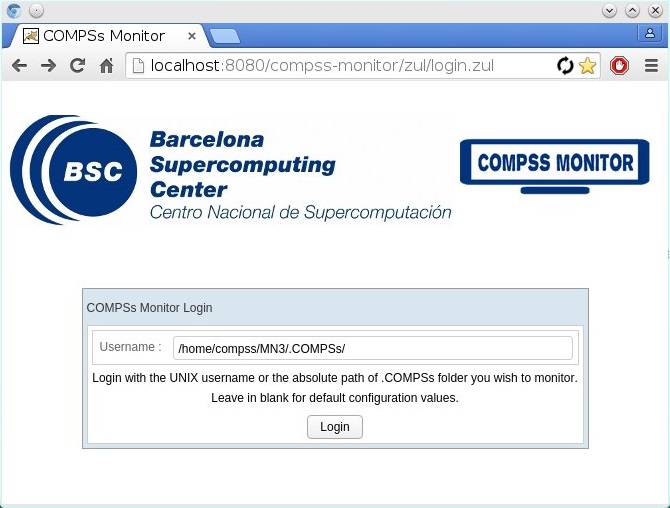
Figure 24 COMPSs Monitor login for Supercomputers
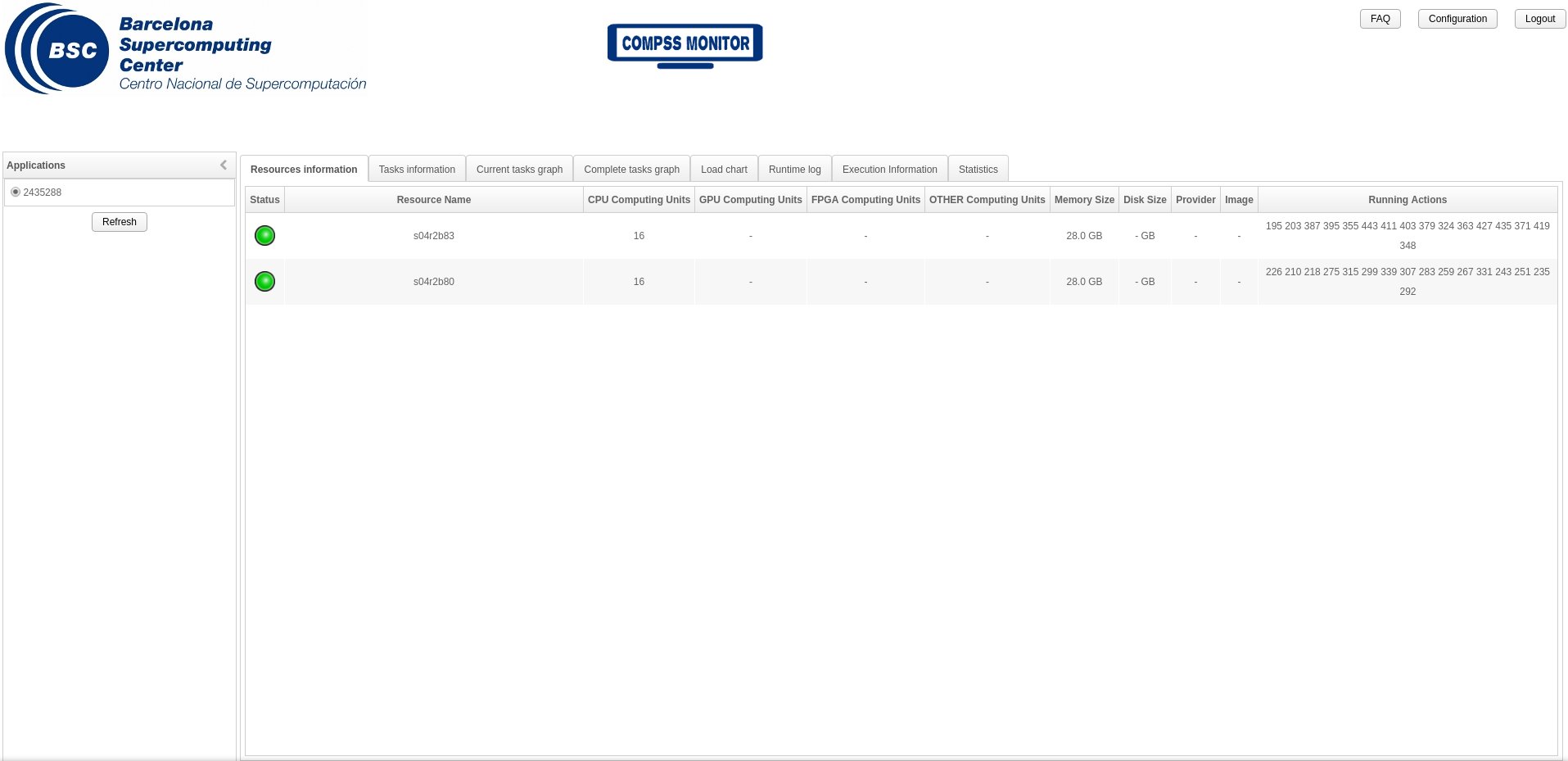
Figure 25 COMPSs Monitor main page for a test application at Supercomputers