Local
This section is intended to walk you through the COMPSs usage in local machines.
Executing COMPSs applications
Prerequisites
Prerequisites vary depending on the application’s code language: for Java applications the users need to have a jar archive containing all the application classes, for Python applications there are no requirements and for C/C++ applications the code must have been previously compiled by using the compss_build_app command.
For further information about how to develop COMPSs applications please refer to 🏗️ Application development.
Runcompss command
COMPSs applications are executed using the runcompss command:
compss@bsc:~$ runcompss [options] application_name [application_arguments]
The application name must be the fully qualified name of the application in Java, the path to the .py file containing the main program in Python and the path to the master binary in C/C++.
The application arguments are the ones passed as command line to main application. This parameter can be empty.
The runcompss command allows the users to customize a COMPSs
execution by specifying different options. For clarity purposes,
parameters are grouped in Runtime configuration, Tools enablers and
Advanced options.
$ runcompss -h
Usage: /opt/COMPSs/Runtime/scripts/user/runcompss [options] application_name application_arguments
* Options:
General:
--help, -h Print this help message
--opts Show available options
--version, -v Print COMPSs version
Tools enablers:
--graph=<bool>, --graph, -g Generation of the complete graph (true/false)
When no value is provided it is set to true
Default: false
-t, --tracing[=<value>] Set generation of traces.
Default: false
When no value is provided, tracing is enabled with the default backend ("extrae").
Supported values:
- true|false Enable tracing using extrae's backend or disable.
- <backend>[,<backend>...] Comma-separated list of tracing backends
(e.g., "extrae,monitor").
--monitoring=<int>, --monitoring, -m Period between monitoring samples (milliseconds)
When no value is provided it is set to 2000
Default: 0
--external_debugger=<int>,
--external_debugger Enables external debugger connection on the specified port (or 9999 if empty)
Default: false
--jmx_port=<int> Enable JVM profiling on specified port
Runtime configuration options:
--task_execution=<compss|storage> Task execution under COMPSs or Storage.
Default: compss
--storage_impl=<string> Path to an storage implementation. Shortcut to setting pypath and classpath. See Runtime/storage in your installation folder.
--storage_conf=<path> Path to the storage configuration file
Default: null
--project=<path> Path to the project XML file
Default: /opt/COMPSs//Runtime/configuration/xml/projects/default_project.xml
--resources=<path> Path to the resources XML file
Default: /opt/COMPSs//Runtime/configuration/xml/resources/default_resources.xml
--socket=<string>, --socket Run the application in client mode. Optional socket path to bind.
--socket=<string>, --socket Run the application in client mode. Optional socket path to bind.
--lang=<name> Language of the application (java/c/python/r)
Default: Inferred is possible. Otherwise: java
--summary Displays a task execution summary at the end of the application execution
Default: false
--log_level=<level>, --debug, -d Set the debug level: off | info | api | debug | trace
Warning: Off level compiles with -O2 option disabling asserts and __debug__
Default: off
Advanced options:
--extrae_config_file=<path> Sets a custom extrae config file. Must be in a shared disk between all COMPSs workers.
Default: /opt/COMPSs//Runtime/configuration/xml/tracing/extrae_basic.xml
--extrae_config_file_python=<path> Sets a custom extrae config file for python. Must be in a shared disk between all COMPSs workers.
Default: null
--trace_label=<string> Add a label in the generated trace file. Only used in the case of tracing is activated.
Default: Application name
--tracing_task_dependencies=<bool> Adds communication lines for the task dependencies (true/false)
Default: false
--generate_trace=<bool> Converts the events register into a trace file. Only used in the case of activated tracing.
Default: true
--delete_trace_packages=<bool> If true, deletes the tracing packages created by the run.
Default: true. Automatically, disabled if the trace is not generated.
--custom_threads=<bool> Threads in the trace file are re-ordered and customized to indicate the function of the thread.
Only used when the tracing is activated and a trace file generated.
Default: true
--comm=<ClassName> Class that implements the adaptor for communications
Supported adaptors:
├── es.bsc.compss.nio.master.NIOAdaptor
└── es.bsc.compss.gat.master.GATAdaptor
Default: es.bsc.compss.nio.master.NIOAdaptor
--conn=<className> Class that implements the runtime connector for the cloud
Supported connectors:
├── es.bsc.compss.connectors.DefaultSSHConnector
└── es.bsc.compss.connectors.DefaultNoSSHConnector
Default: es.bsc.compss.connectors.DefaultSSHConnector
--streaming=<type> Enable the streaming mode for the given type.
Supported types: FILES, OBJECTS, PSCOS, ALL, NONE
Default: NONE
--streaming_master_name=<str> Use an specific streaming master node name.
Default: Empty
--streaming_master_port=<int> Use an specific port for the streaming master.
Default: Empty
--scheduler=<className> Class that implements the Scheduler for COMPSs
Supported schedulers:
├── es.bsc.compss.components.impl.TaskScheduler
├── es.bsc.compss.scheduler.orderstrict.fifo.FifoTS
├── es.bsc.compss.scheduler.lookahead.fifo.FifoTS
├── es.bsc.compss.scheduler.lookahead.lifo.LifoTS
├── es.bsc.compss.scheduler.lookahead.locality.LocalityTS
├── es.bsc.compss.scheduler.lookahead.successors.constraintsfifo.ConstraintsFifoTS
├── es.bsc.compss.scheduler.lookahead.mt.successors.constraintsfifo.ConstraintsFifoTS
├── es.bsc.compss.scheduler.lookahead.successors.fifo.FifoTS
├── es.bsc.compss.scheduler.lookahead.mt.successors.fifo.FifoTS
├── es.bsc.compss.scheduler.lookahead.successors.lifo.LifoTS
├── es.bsc.compss.scheduler.lookahead.mt.successors.lifo.LifoTS
├── es.bsc.compss.scheduler.lookahead.successors.locality.LocalityTS
├── es.bsc.compss.scheduler.lookahead.mt.successors.locality.LocalityTS
└── es.bsc.compss.scheduler.predefined.PredefinedTS
Default in runcompss: es.bsc.compss.scheduler.lookahead.locality.LocalityTS
Default in enqueue_compss shared disk: es.bsc.compss.scheduler.lookahead.mt.successors.fifo.FifoTS
Default in enqueue_compss local disk: es.bsc.compss.scheduler.lookahead.mt.successors.locality.LocalityTS
--scheduler_config_file=<path> Path to the file which contains the scheduler configuration.
Default: Empty
--checkpoint=<className> Class that implements the Checkpoint Management policy
Supported checkpoint policies:
├── es.bsc.compss.checkpoint.policies.CheckpointPolicyInstantiatedGroup
├── es.bsc.compss.checkpoint.policies.CheckpointPolicyPeriodicTime
├── es.bsc.compss.checkpoint.policies.CheckpointPolicyFinishedTasks
└── es.bsc.compss.checkpoint.policies.NoCheckpoint
Default: es.bsc.compss.checkpoint.policies.NoCheckpoint
--checkpoint_params=<string> Checkpoint configuration parameter.
Default: Empty
--checkpoint_folder=<path> Checkpoint folder.
Default: Mandatory parameter
--library_path=<path> Non-standard directories to search for libraries (e.g. Java JVM library, Python library, C binding library)
Default: Working Directory
--classpath=<path> Path for the application classes / modules
Default: Working Directory
--appdir=<path> Path for the application class folder.
Default: /home/user/gitlab/documentation/COMPSs_Manuals
--pythonpath=<path> Additional folders or paths to add to the PYTHONPATH
Default: /home/user/gitlab/documentation/COMPSs_Manuals
--env_script=<path> Path to the script file where the application environment variables are defined.
COMPSs sources this script before running the application.
Default: Empty
--log_dir=<path> Directory to store COMPSs log files (a .COMPSs/ folder will be created inside this location)
Default: User home
--master_working_dir=<path> Use a specific directory to store COMPSs temporary files in master
Default: <log_dir>/.COMPSs/<app_name>/tmpFiles
--uuid=<int> Preset an application UUID
Default: Automatic random generation
--master_name=<string> Hostname of the node to run the COMPSs master
Default: Empty
--master_port=<int> Port to run the COMPSs master communications.
Only for NIO adaptor
Default: [43000,44000]
--jvm_master_opts="<string>" Extra options for the COMPSs Master JVM. Each option separated by "," and without blank spaces (Notice the quotes)
Default: Empty
--jvm_workers_opts="<string>" Extra options for the COMPSs Workers JVMs. Each option separated by "," and without blank spaces (Notice the quotes)
Default: -Xms256m,-Xmx1024m,-Xmn100m
--cpu_affinity="<string>" Sets the CPU affinity for the workers
Supported options: disabled, automatic, dlb or user defined map of the form "0-8/9,10,11/12-14,15,16"
Default: automatic
--gpu_affinity="<string>" Sets the GPU affinity for the workers
Supported options: disabled, automatic, user defined map of the form "0-8/9,10,11/12-14,15,16"
Default: automatic
--fpga_affinity="<string>" Sets the FPGA affinity for the workers
Supported options: disabled, automatic, user defined map of the form "0-8/9,10,11/12-14,15,16"
Default: automatic
--fpga_reprogram="<string>" Specify the full command that needs to be executed to reprogram the FPGA with the desired bitstream. The location must be an absolute path.
Default: Empty
--io_executors=<int> IO Executors per worker
Default: 0
--task_count=<int> Only for C/Python Bindings. Maximum number of different functions/methods, invoked from the application, that have been selected as tasks
Default: 50
--input_profile=<path> Path to the file which stores the input application profile
Default: Empty
--output_profile=<path> Path to the file to store the application profile at the end of the execution
Default: Empty
--PyObject_serialize=<bool> Only for Python Binding. Enable the object serialization to string when possible (true/false).
Default: false
--persistent_worker_c=<bool> Only for C Binding. Enable the persistent worker in c (true/false).
Default: false
--enable_external_adaptation=<bool> Enable external adaptation. This option will disable the Resource Optimizer.
Default: false
--gen_coredump Enable master coredump generation
Default: false
--keep_workingdir Do not remove the worker working directory after the execution
Default: false
--python_interpreter=<string> Python interpreter to use (python/python3).
Default: python3 Version:
--python_propagate_virtual_environment=<bool> Propagate the master virtual environment to the workers (true/false).
Default: true
--python_mpi_worker=<bool> Use MPI to run the python worker instead of multiprocessing. (true/false).
Default: false
--python_memory_profile Generate a memory profile of the master.
Default: false
--python_worker_cache=<string> Python worker CPU and GPU cache (false/cpu:10GB/gpu:25%).
Only for NIO without mpi worker and python >= 3.8.
Default: false
--python_cache_profiler=<bool> Python cache profiler (true/false).
Only for NIO without mpi worker and python >= 3.8.
Default: false
--wall_clock_limit=<int> Maximum duration of the application (in seconds).
Default: 0
--shutdown_in_node_failure=<bool> Stop the whole execution in case of Node Failure.
Default: false
--provenance=<yaml>, --provenance, -p Generate COMPSs workflow provenance data in RO-Crate format using a YAML configuration file. Automatically activates --graph.
Default: ro-crate-info.yaml
--provenance_folder=<path> Path where the workflow provenance will be generated
Default: COMPSs_RO-Crate_[timestamp]
--zip_provenance, -z Zip the resulting COMPSs RO-Crate
Default: COMPSs_RO-Crate_[timestamp].zip
* Application name:
For Java applications: Fully qualified name of the application
For C applications: Path to the master binary
For Python applications: Path to the .py file containing the main program
For R applications: Path to the .R file containing the main program
* Application arguments:
Command line arguments to pass to the application. Can be empty.
Warning
The cpu_affinity feature is not available in macOS distributions. Then, for all macOS executions the flag
--cpu_affinity=disabled must be specified, no matter if they are Java, Python or C/C++.
Running a COMPSs application
Before running COMPSs applications the application files must be in
the CLASSPATH. Thus, when launching a COMPSs application, users can
manually set the CLASSPATH environment variable or can add the
--classpath option to the runcompss command.
The next three sections provide specific information for launching COMPSs applications developed in different code languages (Java, Python and C/C++). For clarity purposes, we will use the Simple application (developed in Java, Python and C++) available in the https://github.com/bsc-wdc/tutorial_apps repository. This application takes an integer as input parameter and increases it by one unit using a task. For further details about the codes please refer to 💡 Sample Applications.
Tip
For further information about applications scheduling refer to 📜 Schedulers.
Running Java applications
A Java COMPSs application can be launched through the following command:
compss@bsc:~$ cd tutorial_apps/java/simple/jar/
compss@bsc:~/tutorial_apps/java/simple/jar$ runcompss simple.Simple <initial_number>
compss@bsc:~/tutorial_apps/java/simple/jar$ runcompss simple.Simple 1
[  INFO] Using default execution type: compss
[  INFO] Using default location for project file: /opt/COMPSs/Runtime/configuration/xml/projects/default_project.xml
[  INFO] Using default location for resources file: /opt/COMPSs/Runtime/configuration/xml/resources/default_resources.xml
[  INFO] Using default language: java

----------------- Executing simple.Simple --------------------------

WARNING: COMPSs Properties file is null. Setting default values
[(1066)    API]  -  Starting COMPSs Runtime v<version>
Initial counter value is 1
Final counter value is 2
[(4740)    API]  -  Execution Finished

------------------------------------------------------------
In this first execution we use the default value of the --classpath
option to automatically add the jar file to the CLASSPATH (by executing
runcompss in the directory which contains the jar file). However, we can
explicitly do this by exporting the CLASSPATH variable or by
providing the --classpath value. Next, we provide two more ways to
perform the same execution:
compss@bsc:~$ export CLASSPATH=$CLASSPATH:/home/compss/tutorial_apps/java/simple/jar/simple.jar
compss@bsc:~$ runcompss simple.Simple <initial_number>
compss@bsc:~$ runcompss --classpath=/home/compss/tutorial_apps/java/simple/jar/simple.jar \
                        simple.Simple <initial_number>
Running Python applications
To launch a COMPSs Python application users have to provide the
--lang=python option to the runcompss command. If the extension of
the main file is a regular Python extension (.py or .pyc) the
runcompss command can also infer the application language without
specifying the lang flag.
compss@bsc:~$ cd tutorial_apps/python/simple/
compss@bsc:~/tutorial_apps/python/simple$ runcompss --lang=python ./simple.py <initial_number>
compss@bsc:~/tutorial_apps/python/simple$ runcompss simple.py 1
[  INFO] Using default execution type: compss
[  INFO] Using default location for project file: /opt/COMPSs/Runtime/configuration/xml/projects/default_project.xml
[  INFO] Using default location for resources file: /opt/COMPSs/Runtime/configuration/xml/resources/default_resources.xml
[  INFO] Inferred PYTHON language

----------------- Executing simple.py --------------------------

WARNING: COMPSs Properties file is null. Setting default values
[(616)    API]  -  Starting COMPSs Runtime v<version>
Initial counter value is 1
Final counter value is 2
[(4297)    API]  -  Execution Finished

------------------------------------------------------------
Attention
Executing without debug (e.g. default log level or --log_level=off)
uses -O2 compiled sources, disabling asserts and __debug__.
Alternatively, it is possible to execute the a COMPSs Python application
using pycompss as module:
compss@bsc:~$ python -m pycompss <runcompss_flags> <application> <application_parameters>
Consequently, the previous example could also be run as follows:
compss@bsc:~$ cd tutorial_apps/python/simple/
compss@bsc:~/tutorial_apps/python/simple$ python -m pycompss simple.py <initial_number>
If the -m pycompss is not set, the application will be run ignoring
all PyCOMPSs imports, decorators and API calls, that is, sequentially.
In order to run a COMPSs Python application with a different interpreter, the runcompss command provides a specific flag:
compss@bsc:~$ cd tutorial_apps/python/simple/
compss@bsc:~/tutorial_apps/python/simple$ runcompss --python_interpreter=python3 ./simple.py <initial_number>
However, when using the pycompss module, it is inferred from the python used in the call:
compss@bsc:~$ cd tutorial_apps/python/simple/
compss@bsc:~/tutorial_apps/python/simple$ python3 -m pycompss simple.py <initial_number>
Finally, both runcompss and pycompss module provide a particular
flag for virtual environment propagation
(--python_propagate_virtual_environment=<bool>). This, flag is
intended to activate the current virtual environment in the worker nodes
when set to true.
Specific flags
Some of the runcompss flags are only for PyCOMPSs application execution:
- --pythonpath=<path>
Additional folders or paths to add to the PYTHONPATH Default: /home/user
- --PyObject_serialize=<bool>
Only for Python Binding. Enable the object serialization to string when possible (true/false). Default: false
- --python_interpreter=<string>
Python interpreter to use (python/python2/python3). Default: “python” version
- --python_propagate_virtual_environment=<true>
Propagate the master virtual environment to the workers (true/false). Default: true
- --python_mpi_worker=<false>
Use MPI to run the python worker instead of multiprocessing. (true/false). Default: false
- --python_memory_profile
Generate a memory profile of the master. Default: false
See: Memory Profiling
- --python_worker_cache=<string>
Python worker cache (true/true:size/false). Only for NIO without mpi worker and python >= 3.8. Available for GPU if cupy installed. Default: false
See: Worker cache
- --python_cache_profiler=<bool>
Python cache profiler (true/false). Only for NIO without mpi worker and python >= 3.8. Default: false
Warning
For macOS systems, the flag --python_interpreter=/path_to/python must be passed to ensure the
same Python version is used both in master and worker parts of the application (the application will crash
otherwise). We recommend to use pyenv to manage the macOS installed
Python versions. An example using pyenv would be: --python_interpreter=/Users/username/.pyenv/shims/python3
In addition, be careful with Xcode updates, since they can modify the Python system version.
Worker cache
The --python_worker_cache is used to enable a cache between processes on
each worker node. More specifically, this flag enables a shared memory space
between the worker processes, so that they can share objects between processes
in order to leverage the deserialization overhead.
If CUPY is installed the cache is enabled, the cupy.ndarrays will also
be cacheables in each GPU memory.
The possible values are:
--python_worker_cache=falseDisable the cache (CPU/GPU). This is the default value.
--python_worker_cache=trueEnable the cache (CPU/GPU). The default cache size is 25% of the worker node memory. And the hard limited gpu cache size is 25% of the gpu memory.
--python_worker_cache=true:<SIZE>Enable the cache with specific cache size (in bytes and only for CPU). Setting the gpu cache size is not yet supported.
During execution, each worker will try to store automatically the parameters and return objects, so that next tasks can make use of them without needing to deserialize from file.
Important
The supported objects to be stored in the cache is limited to: python primitives (int, float, bool, str (less than 10 Mb), bytes (less than 10 Mb) and None), lists (composed by python primitives), tuples (composed by python primitives), Numpy ndarrays and Cupy ndarrays.
It is important to take into account that storing the objects in cache has some non negligible overhead that can be representative, while getting objects from cache shows to be more efficient than deserialization. Consequently, the applications that most benefit from the cache are the ones that reuse many times the same objects.
Avoiding to store an object into the cache is possible by setting Cache to
False into the @task decorator for the parameter. For example,
Code 155 shows how to avoid caching the value
parameter.
from pycompss.api.task import task
from pycompss.api.parameter import *

@task(value={Cache: False})
def mytask(value):
    ....
Task return objects are also automatically stored into cache. To avoid caching
return objects it is necessary to set cache_returns=False into the
@task decorator, as Code 156 shows.
from pycompss.api.task import task

@task(returns=1, cache_returns=False)
def mytask():
    return list(range(10))
Worker cache profiling
In order to use the cache profiler, you need to add the following flag:
--python_cache_profiler=trueAdditionally, you also need to activate the cache with
--python_worker_cache=true.
When using the cache profiler, the cache parameter in @task decorator
is going to be ignored and all elements that can be stored in the cache
will be stored.
The cache profiling file will be located in the workers’ folder within the log folder. In this file, you will find a summary showing for each function and parameter (including the return of the function), how many times has been the parameter been added to the cache (PUT), and how many times has been this parameter been deserialized from the cache (GET). Furthermore, there is also a list (USED IN), that shows in which parameter of which function the added parameter has been used.
Additional features
Concurrent serialization
It is possible to perform concurrent serialization of the objects in the master
when using Python 3.
To this end, just export the COMPSS_THREADED_SERIALIZATION environment
variable with any value:
compss@bsc:~$ export COMPSS_THREADED_SERIALIZATION=1
Caution
Please, make sure that the COMPSS_THREADED_SERIALIZATION environment
variable is not in the environment (env) to avoid the concurrent
serialization of the objects in the master.
Tip
This feature can also be used within supercomputers in the same way.
Running C/C++ applications
To launch a COMPSs C/C++ application users have to compile the
C/C++ application by means of the compss_build_app command. For
further information please refer to 🧙 C/C++.
Once complied, the --lang=c option must be provided to the runcompss
command. If the main file is a C/C++ binary the runcompss command
can also infer the application language without specifying the lang
flag.
compss@bsc:~$ cd tutorial_apps/c/simple/
compss@bsc:~/tutorial_apps/c/simple$ runcompss --lang=c simple <initial_number>
compss@bsc:~/tutorial_apps/c/simple$ runcompss ~/tutorial_apps/c/simple/master/simple 1
[  INFO] Using default execution type: compss
[  INFO] Using default location for project file: /opt/COMPSs/Runtime/configuration/xml/projects/default_project.xml
[  INFO] Using default location for resources file: /opt/COMPSs/Runtime/configuration/xml/resources/default_resources.xml
[  INFO] Inferred C/C++ language

----------------- Executing simple --------------------------

JVM_OPTIONS_FILE: /tmp/tmp.ItT1tQfKgP
COMPSS_HOME: /opt/COMPSs
Args: 1

WARNING: COMPSs Properties file is null. Setting default values
[(650)    API]  -  Starting COMPSs Runtime v<version>
Initial counter value is 1
[   BINDING]  -  @compss_wait_on  -  Entry.filename: counter
[   BINDING]  -  @compss_wait_on  -  Runtime filename: d1v2_1497432831496.IT
Final counter value is 2
[(4222)    API]  -  Execution Finished

------------------------------------------------------------
Walltime
The runcompss command provides the --wall_clock_limit for the users to
specify the maximum execution time for the application (in seconds).
If the time is reached, the execution is stopped.
Tip
This flag enables to stop the execution of an application in a controlled way if the execution is taking more than expected.
Additional configurations
The COMPSs runtime has two configuration files: resources.xml and
project.xml . These files contain information about the execution
environment and are completely independent from the application.
For each execution users can load the default configuration files or
specify their custom configurations by using, respectively, the
--resources=<absolute_path_to_resources.xml> and the
--project=<absolute_path_to_project.xml> in the runcompss
command. The default files are located in the
/opt/COMPSs/Runtime/configuration/xml/ path. Users can manually edit
these files or can use the Eclipse IDE tool developed for COMPSs.
For further details please check the Configuration Files.
Results and logs
Results
When executing a COMPSs application we consider different type of results:
Application Output: Output generated by the application.
Application Files: Files used or generated by the application.
Tasks Output: Output generated by the tasks invoked from the application.
Regarding the application output, COMPSs will preserve the application
output but will add some pre and post output to indicate the COMPSs
Runtime state. Figure 9 shows the standard output
generated by the execution of the Simple Java application. The green box
highlights the application stdout while the rest of the output is
produced by COMPSs.
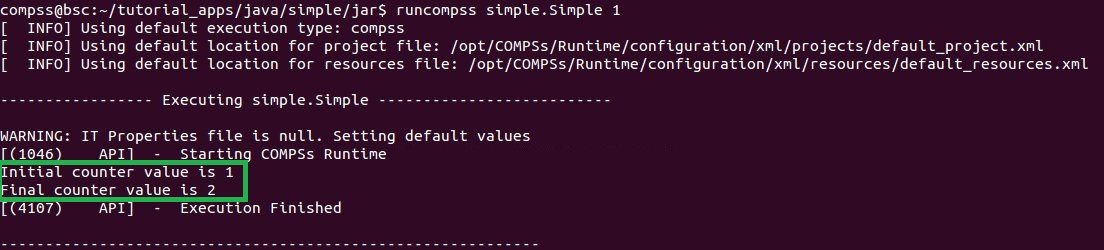
Figure 9 Output generated by the execution of the Simple Java application with COMPSs
Regarding the application files, COMPSs does not modify any of them and thus, the results obtained by executing the application with COMPSs are the same than the ones generated by the sequential execution of the application.
Regarding the tasks output, COMPSs introduces some modifications due to the fact that tasks can be executed in remote machines. After the execution, COMPSs stores the stdout and the stderr of each job (a task execution) inside the ``/home/$USER/.COMPSs/$APPNAME/$EXEC_NUMBER/jobs/`` directory of the main application node.
Figure 10 and Figure 11 show an example of the
results obtained from the execution of the Hello Java application.
While Figure 10 provides the output of the sequential
execution of the application (without COMPSs), Figure 11
provides the output of the equivalent COMPSs
execution. Please note that the sequential execution produces the
Hello World! (from a task) message in the stdout while the
COMPSs execution stores the message inside the job1_NEW.out file.

Figure 10 Sequential execution of the Hello java application
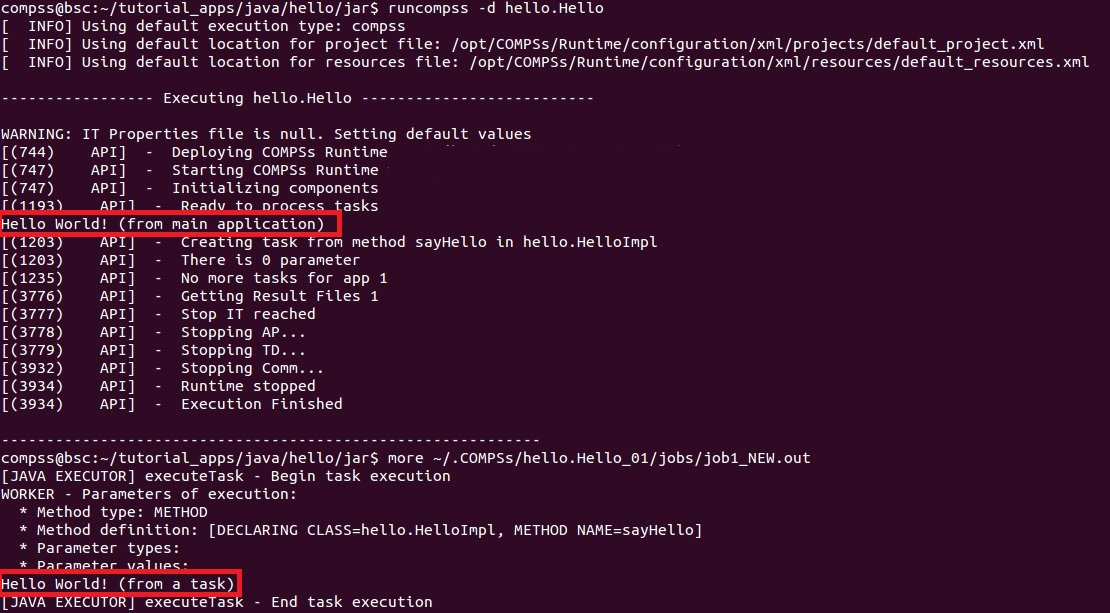
Figure 11 COMPSs execution of the Hello java application
Logs
COMPSs includes five log levels for running applications but users can
modify them or add more levels by editing the logger files under the
/opt/COMPSs/Runtime/configuration /log/ folder. Any of these log
levels can be selected by adding the --log_level=<off | info | api | debug | trace>
flag to the runcompss command. The default value is off.
The logs generated by the NUM_EXEC execution of the application APP
by the user USER are stored under
/home/$USER/.COMPSs/$APP/$EXEC_NUMBER/ folder (from this point on:
base log folder). The EXEC_NUMBER execution number is
automatically used by COMPSs to prevent mixing the logs of data of
different executions.
When running COMPSs with log level off only the errors are reported.
This means that the base log folder will contain two empty files
(runtime.log and resources.log) and one empty folder (jobs).
If somehow the application has failed, the runtime.log and/or the
resources.log will not be empty and a new file per failed job will
appear inside the jobs folder to store the stdout and the
stderr. Figure 12 shows the logs generated by
the execution of the Simple java application (without errors) in off
mode.
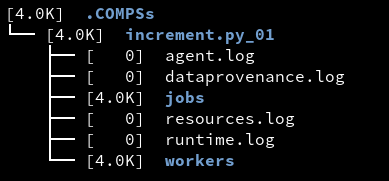
Figure 12 Structure of the logs folder for the Simple java application in off mode
When running COMPSs with log level info the base log folder will
contain two files (runtime.log and resources.log) and one folder
(jobs). The runtime.log file contains the execution information
retrieved from the master resource, including the file transfers and the
job submission details. The resources.log file contains information
about the available resources such as the number of processors of each
resource (slots), the information about running or pending tasks in the
resource queue and the created and destroyed resources. The jobs folder
will be empty unless there has been a failed job. In this case it will
store, for each failed job, one file for the stdout and another for
the stderr. As an example, Figure 13 shows the
logs generated by the same execution than the previous case but with
info mode.

Figure 13 Structure of the logs folder for the Simple java application in info mode
The runtime.log and resources.log are quite large files, thus
they should be only checked by advanced users. For an easier
interpretation of these files the COMPSs Framework includes a monitor
tool. For further information about the COMPSs Monitor please check
🖥️ Monitor.
Figure 14 and Figure 15 provide the content of these two files generated by the execution of the Simple java application.
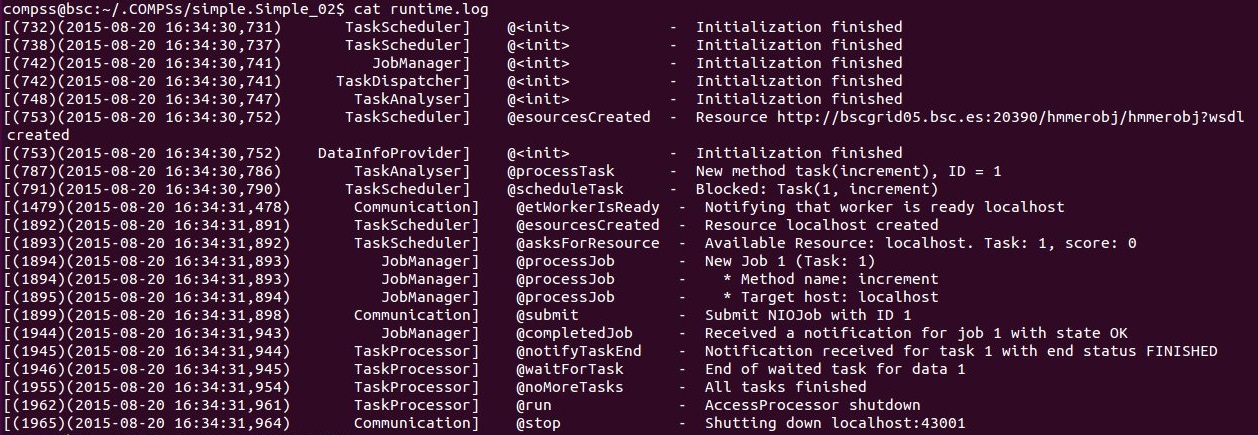
Figure 14 runtime.log generated by the execution of the Simple java application
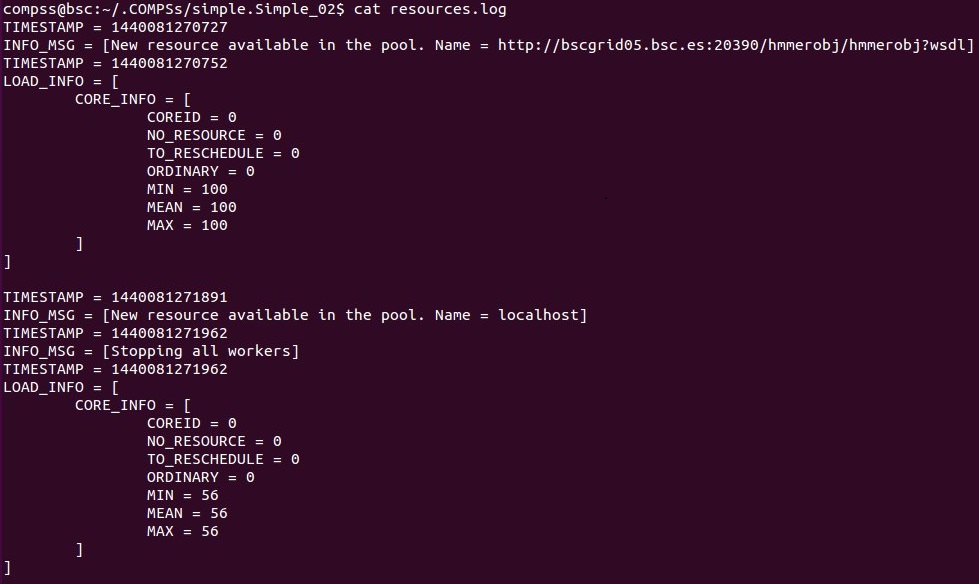
Figure 15 resources.log generated by the execution of the Simple java application
Running COMPSs with log level API generates the same files as the
info log level but shows the API information through stdout.
As an example, Figure 16 shows the logs generated by the same
execution than the previous case but with API mode.
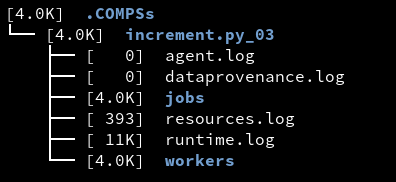
Figure 16 Structure of the logs folder for the Simple java application in API mode
Running COMPSs with log level debug generates the same files as the
API log level but with more detailed information. Additionally, the
jobs folder contains two files per submitted job; one for the
stdout and another for the stderr. In the other hand, the COMPSs
Runtime state is printed out on the stdout.
Figure 17 shows the logs generated by the same execution
than the previous cases but with debug mode.
The runtime.log and the resources.log files generated in this mode can be extremely large. Consequently, the users should take care of their quota and manually erase these files if needed.
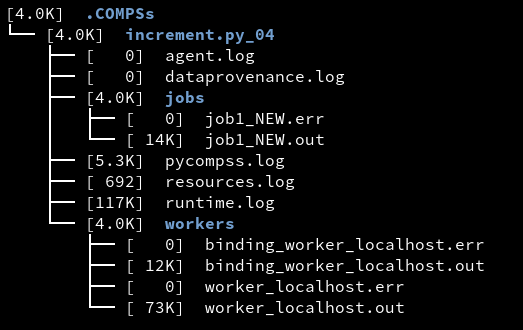
Figure 17 Structure of the logs folder for the Simple java application in debug mode
When running Python applications a pycompss.log file is written
inside the base log folder containing debug information about the
specific calls to PyCOMPSs.
Furthermore, when running runcompss with additional flags (such as
monitoring or tracing) additional folders will appear inside the base
log folder. The meaning of the files inside these folders is explained
in 🛠️ Ecosystem.
Finally, running COMPSs with log level trace extends the debug information with much more detailed information for debugging specific issues. This log level generates larger files that the debug log level. Consequently, users must take care of their quota. As an example, Figure 18 shows the logs generated by the same execution than the previous case but with trace mode.
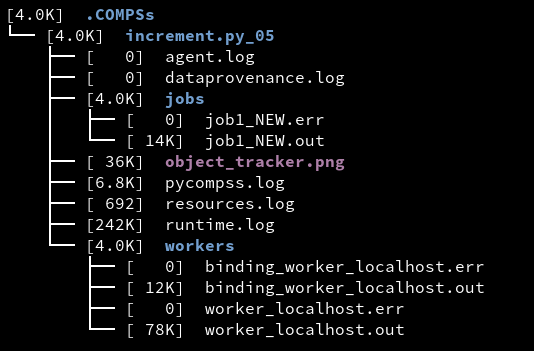
Figure 18 Structure of the logs folder for the Simple java application in trace mode