Publish at ROHub
Similarly as with WorkflowHub and Zenodo, once the provenance metadata for your COMPSs application has been generated, you have the possibility of publishing your results (i.e. both the workflow and the workflow run) in Research Object Hub. ROHub is a Research Object management platform supporting the preservation and lifecycle management of scientific investigations, research campaigns and operational processes. As the only existing platform implementing natively the full research object model and paradigm, resources associated to a particular experiment are aggregated in a single digital entity (Research Object), and metadata relevant to understand and interpret the content is represented as semantic metadata that are user and machine readable.
A key feature of ROHub is that it natively supports importing RO-Crates, which is very convenient for the COMPSs workflow provenance recording mechanism.
Preliminary steps
Create your account at ROHub using the Sign up interface.
Log in to your account from the same interface.
Publication steps
The steps to achieve the publication of a COMPSs execution at ROHub are:
Pack the resulting crate sub-directory (i.e.
COMPSs_RO-Crate_[timestamp]/) in a zip file. Example:
$ cd COMPSs_RO-Crate_20250514_153121/
$ zip -r ~/Desktop/crate.zip *
Navigate to
MY ROS->Import RO. Select the zip file created in the previous step and clickImport.
Once imported, the new record will appear under the MY ROS tab. You can View or Edit the record
in order to check that the metadata has been imported correctly, or to modify it if needed.
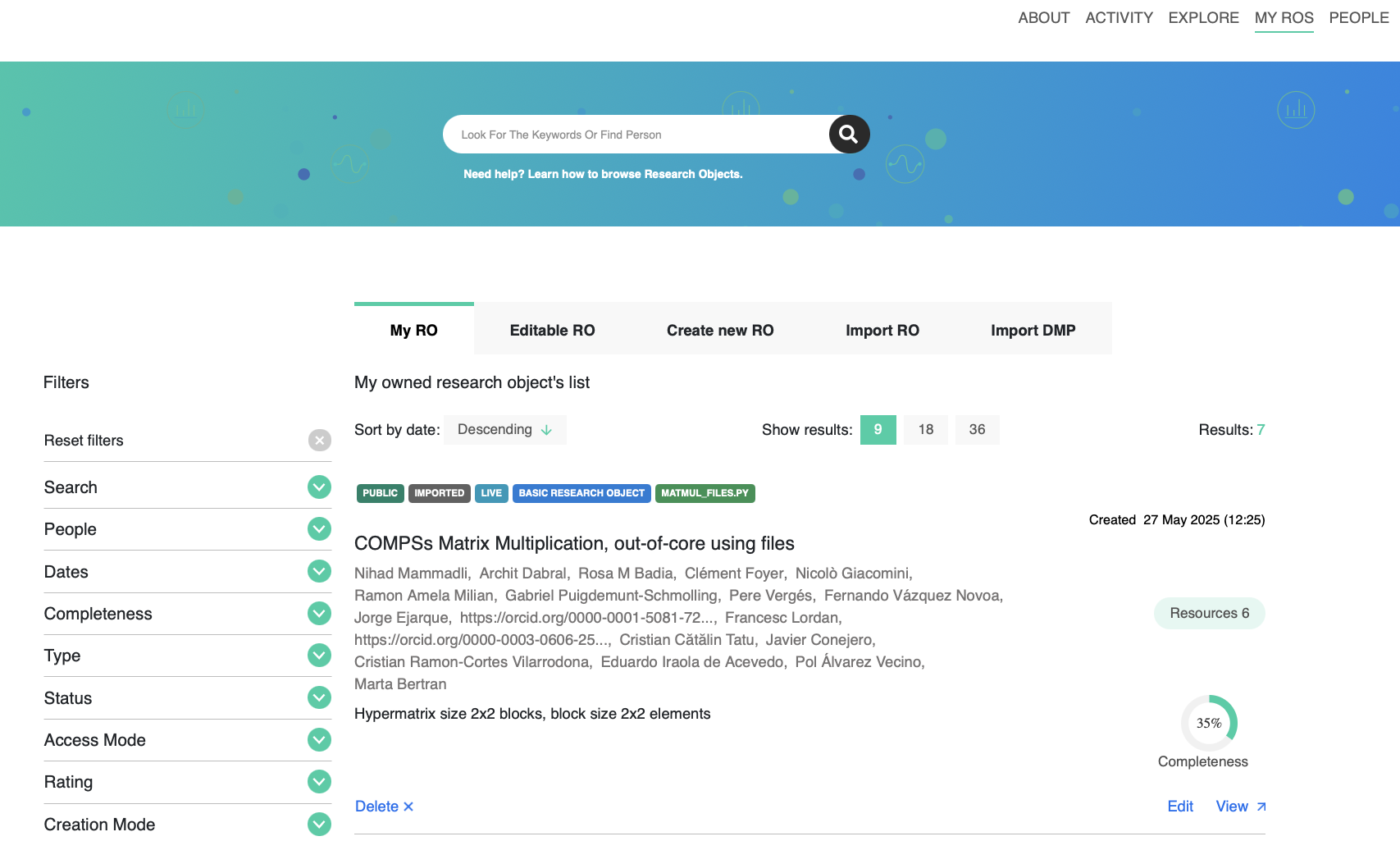
Figure 56 My ROs list
In order to generate a DOI for your record, so you can reference it with a permanent id, you need to follow these steps:
Search for the
Toolboxsection and click theEvolutionoption. SelectSnapshot.Optional: Choose if you want to share the record not only at ROHub but also at
B2SHAREorZenodo(you need to configure access tokens first in your user profile).Select
Generate DOIoption.Click
Snapshot & ExitorSnapshot & Go to overview, depending on your preference.
The snapshot progress bar will appear as shown below:
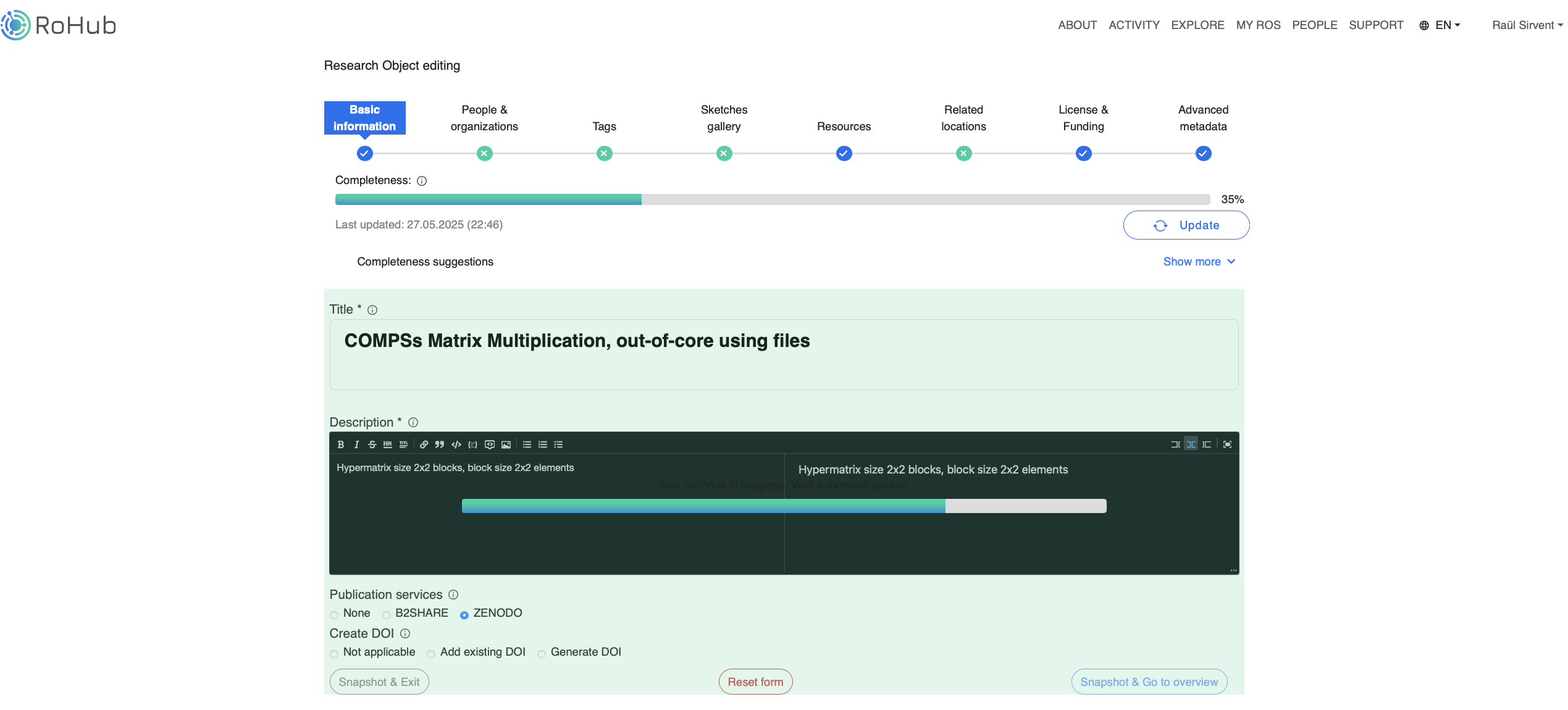
Figure 57 RO snapshot
Generating the snapshot may take a while. Once it is completed, go to MY ROS, and in your record you will see a new Snapshots chooser.
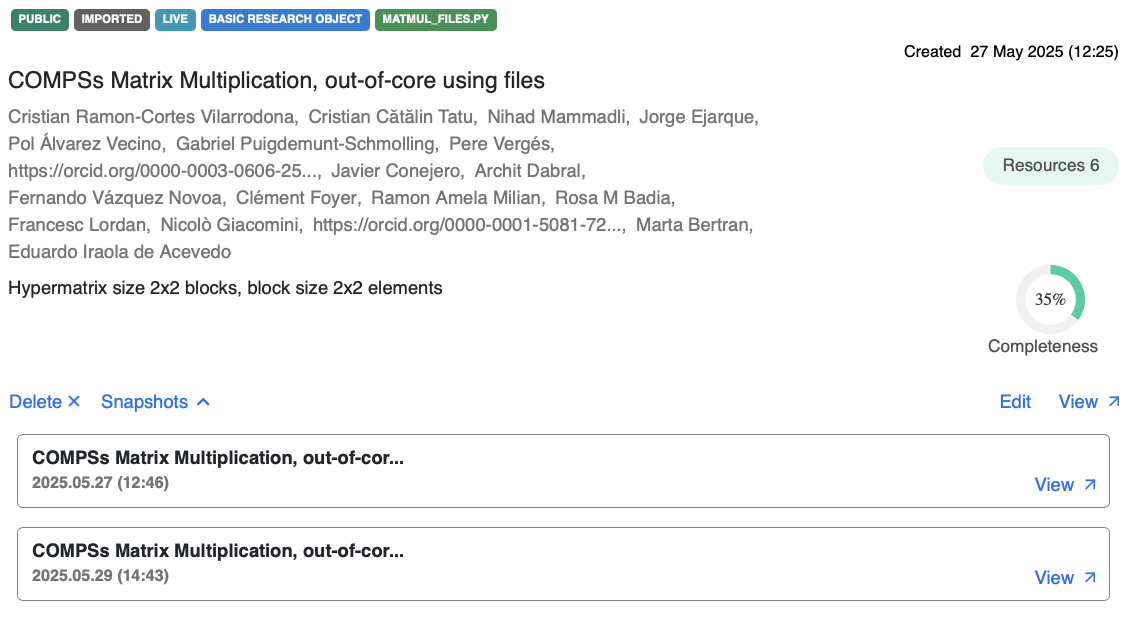
Figure 58 RO detail on snapshots available
Select View the snapshot and you will see the DOI available, like in the following example (record available at https://www.doi.org/10.24424/m037-s338 ):
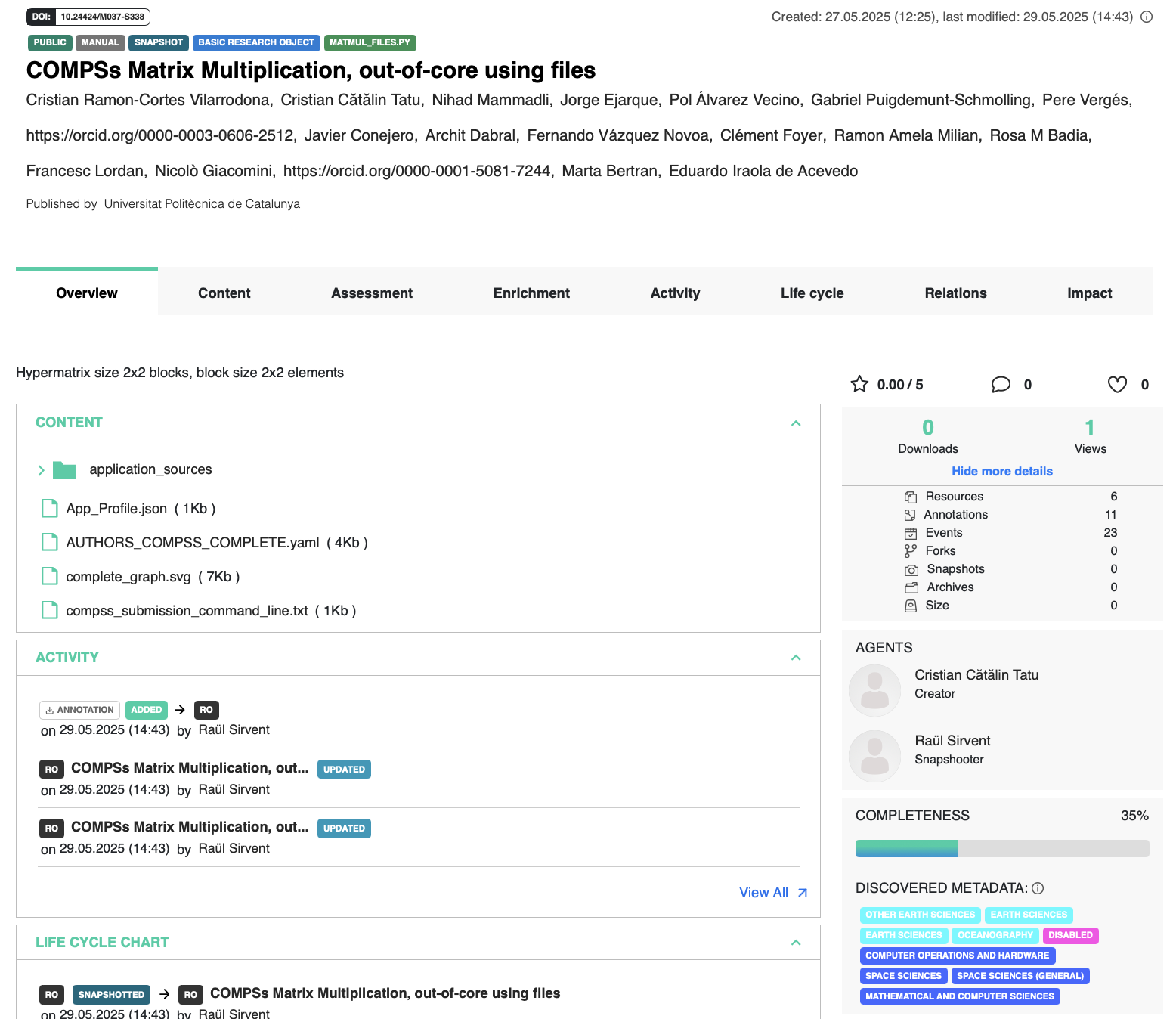
Figure 59 RO record example with DOI generated
ROHub includes other interesting features for your execution, such as assessment of the completeness or FAIRness of your RO. We encourage you to visit the Research Object Hub and investigate further all its possibilities.