Workflow Provenance
The COMPSs runtime includes the capacity of recording details of the application’s execution as metadata, also known as Workflow Provenance. With workflow provenance, you are able to share not only your workflow application (i.e. the source code) but also your workflow run (i.e. the datasets used as inputs, the outputs generated as results, and details on the environment where the application was run). This is supported for both Python and Java COMPSs applications. More technical details on how Provenance is generated in COMPSs using a lightweight approach that does not introduce overhead to the workflow execution can be found in the paper:
Provenance information can be useful for a number of things, including Governance, Reproducibility, Replicability, Traceability, or Knowledge Extraction, among others. In our case, we have initially targeted workflow provenance recording to enable users to publish research results obtained with COMPSs as artifacts that can be cited in scientific publications with their corresponding DOI as a persistent identifier. See Section Publish and cite your results with WorkflowHub to learn precisely how to do that. We see a growing number of scientific conferences requesting these reproducible artifacts, such as:
Reproducibility at the International Conference on Parallel Processing (ICPP)
The ACM Special Interest Group on Management of Data (SIGMOD) Reproducibility Award
Call for Artifacts at USENIX Conference on File and Storage Technologies (FAST)
And many more…
Tip
A step-by-step guide on how to share your COMPSs execution results in scientific papers can be found here.
When the provenance option is activated, the runtime records every access to a file or directory specified in the application, as well as its direction (IN, OUT, INOUT). In addition to this, other information such as the parameters passed as inputs in the command line that submitted the application, its source files, workflow diagram and task profiling statistics, authors and their institutions, … are also stored. All this information is later used to record the workflow provenance of your application using the RO-Crate specification, and with the assistance of the ro-crate-py library. RO-Crate is based on JSON-LD (JavaScript Object Notation for Linked Data), is much simpler than other standards and tools created to record Provenance, and that is why it has been adopted in a number of communities. Using RO-Crate to register the execution’s information ensures not only to register correctly the Provenance of a COMPSs application run, but also compatibility with some existing portals that already embrace RO-Crate as their core format for representing metadata, such as WorkflowHub. Our RO-Crate format is compliant with the Workflow RO-Crate Profile v1.0 and the Workflow Run Crate Profile v0.4.
Software dependencies
Provenance generation in COMPSs depends on the ro-crate-py library,
thus, it must be installed before the provenance option can be used. Depending on the target system, different
options are available using pip:
If the installation is in a laptop or machine you manage, you can use the command:
$ pip install rocrate
If you do not manage the target machine, you can install the library in your own user space using:
$ pip install rocrate --user
This would typically install the library in ~/.local/. Another option is to specify the target directory with:
$ pip install -t install_path rocrate
Our current implementation needs ro-crate-py version 0.9.0 or higher.
Warning
If you are using a BSC cluster (MareNostrum, CTE-POWER, …), ro-crate-py is already installed for a number of
python versions at /apps/COMPSs/LIBRARIES/, and COMPSs is configured to use it. Thus, you don’t need
to install ro-crate-py.
YAML configuration file
There are certain pieces of information which must be included when registering the provenance of a workflow that
the COMPSs runtime cannot automatically infer, such as the authors of an application. For specifying all these
fields that are needed to generate an RO-Crate but cannot be automatically obtained, we have created a simple YAML
structure where the user can specify them. By default, a YAML file named ro-crate-info.yaml will be expected in the
working directory (i.e. where the application is going to be run), but a different YAML file can be used by specifying
it with --provenance=my_yaml_file.yaml when activating workflow provenance generation.
The YAML file must follow the next template structure:
COMPSs Workflow Information:
  name: Name of your COMPSs application
  description: Detailed description of your COMPSs application
  license: YourLicense-1.0
  sources: [/absolute_path_to/dir_1/, relative_path_to/dir_2/, main_file.py, relative_path/aux_file_1.py, /abs_path/aux_file_2.py]
  data_persistence: False
  inputs: [/abs_path_to/dir_1, rel_path_to/dir_2, file_1, rel_path/file_2, https://domain.to/file]
  outputs: [/abs_path_to/dir_1, rel_path_to/dir_2, file_1, rel_path/file_2, https://domain.to/file]
  sources_main_file: my_main_file.py

Authors:
  - name: Author_1 Name
    e-mail: author_1@email.com
    orcid: https://orcid.org/XXXX-XXXX-XXXX-XXXX
    organisation_name: Institution_1 name
    ror: https://ror.org/XXXXXXXXX
  - name: Author_2 Name
    e-mail: author2@email.com
    orcid: https://orcid.org/YYYY-YYYY-YYYY-YYYY
    organisation_name: Institution_2 name
    ror: https://ror.org/YYYYYYYYY

Agent:
  name: Name
  e-mail: agent@email.com
  orcid: https://orcid.org/XXXX-XXXX-XXXX-XXXX
  organisation_name: Agent Institution name
  ror: https://ror.org/XXXXXXXXX
Warning
If no YAML file is provided, the runtime will fail to generate provenance, and will automatically generate an
ro-crate-info_TEMPLATE.yaml file that the user can edit to add their details.
As you can see, there are three main blocks in the YAML:
COMPSs Workflow Information: where details on the application are provided.
Authors: where authors’ details are given.
Agent: the single person running the workflow in the computing resources.
COMPSs Workflow Information section
More specifically, in the COMPSs Workflow Information section, the most commonly used terms are:
The
nameanddescriptionfields are free text, where a long name and description of the application must be provided.sourcescan be a single directory or file, or a list of directories or files where application source files can be found. Thesourcesterm here is used not only to describe files with source code (typically all.pyfiles for Python applications, or.java,.class,.jarfiles for Java ones), but also any installation and configuration scripts, compilation scripts (Makefile, pom.xml, …), submission scripts, readme files, … that should be included with the application package. Our script will add ALL files (i.e. not only source files, but any file found) and sub-directories inside each of the directory paths specified. The sub-directories structure is respected when the files are added in the crate (inside a sub-directoryapplication_sources/). Both relative and absolute paths can be used. If the termsourcesis not specified, only the application’s main file will be added as the corresponding source code if it can be found in the current working directory.The
licensefield is preferred to be specified by providing an URL to the license, but a set of predefined strings are also supported, and can be found at the Workflow-RO-Crate profile page.data_persistencevalue isFalseby default. It is a boolean to indicate whether the workflow provenance generation should copy the workflow’s input and output datasets to the crate (i.e. must be set toTrue). Including the datasets is feasible for workflows where they are small enough to be sent back and forth between execution environments. When datasets are too large to be moved around (i.e. hundreds of MB), this field should be set toFalse.
Tip
Large datasets (i.e. hundreds of MBs) should be uploaded to public
data repositories (e.g. Zenodo up to 50 GB per dataset, FigShare
up to 5 TB per dataset) and included as https references with the inputs or outputs terms.
From all these terms, only name is mandatory, since the rest are not strictly required to generate workflow provenance with COMPSs.
However, it is important to include as much information as possible in order to correctly share your application and
results. Besides, missing information can lead to reduced features when using workflow provenance (e.g. if no Authors
are specified, WorkflowHub will not allow to generate a DOI for the workflow execution).
Warning
When data_persistence is True, application datasets will be stored in a dataset/ sub-directory in the resulting
crate. The sub-folder structure will be build starting at the largest possible common path among files (e.g. if /path_1/inputs/A/A.txt
and /path_1/inputs/B/B.txt are used, they will be located at dataset/inputs/A/A.txt and dataset/inputs/B/B.txt
respectively. However, if /path_1/inputs/A/A.txt and /path_2/inputs/B/B.txt are used, the location will be
dataset/A.txt and dataset/B.txt, since files do not share a common path and are considered to be at different
locations.
Also, some more optional terms are available, but less commonly used:
inputsto manually include input parameters (files or directories) to the application, in addition to the ones detected. In order to include very large files in the crate without actually copying them, files from remote repositories can be referenced (e.g.https://zenodo.org/records/10782431/files/lysozyme_datasets.zip)outputsto manually include output parameters (files or directories) to the application, in addition to the ones detected. In order to include very large files in the crate without actually copying them, files from remote repositories can be referenced (e.g.https://zenodo.org/records/10783183/files/results_2003_0521_boumardes_BS.tar.gz)sources_main_fileis an advanced feature very rarely used, to override the detected main file for the application. It defines the name of the main source file of the application, and may be specified if the user wants to select a particular file as such. The COMPSs runtime detects automatically the main source of an application, therefore, this is a way to override the detected file. The file can be specified with a relative path inside one of the directories listed insources. An absolute path can also be used.
Warning
The term sources_main_file can only be used when sources is defined. While the runtime is able to detect
automatically the main file from application execution, this would enable to modify the automatic selection in case
of need.
Authors section
In the Authors section (the whole section is optional), a single author or a list of authors can be provided. For each Author:
name,e-mailandorganisation_nameare strings corresponding to the author’s name, e-mail and their institution. They are free text, but thee-mailfield must follow theuser@domain.topformat.orcidrefers to the ORCID identifier of the author. The IDs can be found and created at https://orcid.org/rorrefers to the Research Organization Registry (ROR) identifier for an institution. They can be found at http://ror.org/
Warning
If an Author is specified, it must have at least a name and an orcid defined. If their Organisation is also
specified, at least the ror must be provided.
Tip
It is very important that the sources, orcid and
ror terms are correctly defined, since the
runtime will only register information for the list of source files defined, and the orcid and ror are
used as unique identifiers in the RO-Crate specification.
Agent section
The Agent section has the same terms as the Authors section, but it specifically provides the details of the sole person running the workflow, that can be different from the Authors. The whole section is optional and only a single individual can be provided.
Warning
If no Agent section is provided, the first Author will be considered by default as the agent executing the workflow.
Examples
In the following lines, we provide a YAML example for an out-of-core Matrix Multiplication PyCOMPSs application,
distributed with license Apache v2.0, with two source files, and authored by two persons from two different
institutions. Since no Agent is defined, the first author is considered as such by default. The data_persistence
term is set to True, to indicate the datasets should be included in the resulting crate.
COMPSs Workflow Information:
  name: COMPSs Matrix Multiplication, out-of-core using files
  description: Hypermatrix size 2x2 blocks, block size 2x2 elements
  license: Apache-2.0
  sources: [matmul_directory.py, matmul_tasks.py]
  data_persistence: True

Authors:
  - name: Raül Sirvent
    e-mail: Raul.Sirvent@bsc.es
    orcid: https://orcid.org/0000-0003-0606-2512
    organisation_name: Barcelona Supercomputing Center
    ror: https://ror.org/05sd8tv96
  - name: Rosa M. Badia
    e-mail: Rosa.M.Badia@upc.edu
    orcid: https://orcid.org/0000-0003-2941-5499
    organisation_name: Universitat Politècnica de Catalunya
    ror: https://ror.org/03mb6wj31
Also, another example of a COMPSs Java K-means application, where the usage of sources including directories can be seen.
We add to the crate the sub-directories that contain the .jar and .java files. In this case,
an Agent is provided which is different from the person that wrote the application. The term data_persistence
has been explicitly specified, but since the default value is False if not specified, it could be removed and still
obtain the same result.
COMPSs Workflow Information:
  name: COMPSs K-means
  description: K-means clustering is a method of cluster analysis that aims to partition ''n'' points into ''k''
    clusters in which each point belongs to the cluster with the nearest mean. It follows an iterative refinement
    strategy to find the centers of natural clusters in the data.
  license: https://opensource.org/licenses/Apache-2.0
  sources: [jar/, src/]
  data_persistence: False

Authors:
  name: Raül Sirvent
  e-mail: Raul.Sirvent@bsc.es
  orcid: https://orcid.org/0000-0003-0606-2512
  organisation_name: Barcelona Supercomputing Center
  ror: https://ror.org/05sd8tv96

Agent:
  name: Rosa M. Badia
  e-mail: Rosa.M.Badia@upc.edu
  orcid: https://orcid.org/0000-0003-2941-5499
  organisation_name: Universitat Politècnica de Catalunya
  ror: https://ror.org/03mb6wj31
An example of the minimal YAML that needs to be defined in order to publish your workflow in WorkflowHub is:
COMPSs Workflow Information:
  name: COMPSs K-means
Tip
While effectively the only mandatory field to be able to publish a workflow in WorkflowHub is name inside the COMPSs
Workflow Information section, we encourage application owners to include all the fields detailed in the YAML in
order to get all the benefits of recording workflow provenance. For instance, if no authors are included, it will
not be possible to generate a DOI for the workflow.
Recording activation
The way of activating the recording of workflow provenance with COMPSs is very simple.
One must only enable the -p or --provenance flag when using runcompss,
enqueue_compss, or pycompss run to run or submit a COMPSs application. It is important to highlight that the
--provenance flag accepts a custom name for the YAML file with the application’s details (see previous
Section YAML configuration file). This is
specified using the --provenance=my_yaml_file.yaml option, as shown in the runcompss help:
$ runcompss -h

(...)
--provenance=<yaml>,
--provenance, -p    Generate COMPSs workflow provenance data in RO-Crate format using a YAML configuration file. Automatically activates --graph and --output_profile.
                    Default: ro-crate-info.yaml
Warning
As stated in the help, provenance automatically activates both --graph and --output_profile options.
Consider that the graph diagram generation can take some extra time at the end of the execution of your
application, therefore, adjust the --exec_time accordingly.
In the case of extremely large workflows (e.g. a workflow
with tenths of thousands of task nodes, or tenths of thousands of files used as inputs or outputs), the extra time
needed to generate the workflow provenance with RO-Crate may be a problem in systems with strict run time constraints.
Besides, in the COMPSs specific case, workflows with a large number of edges can lead to large
workflow diagram generation time with compss_gengraph.
In these cases, the workflow execution may end correctly, but the extra processing time needed to generate the
provenance may be larger than the specified execution time limit. This means that the process may be killed while
generating the provenance, therefore it won’t be created correctly.
Warning
As a failsafe, we automatically disable workflow diagram generation for workflows with more than 6500 edges.
If you want to generate the diagram anyway, you can
trigger the diagram generation manually with compss_gengraph or pycompss gengraph.
For these extreme cases, our workflow provenance generation script can be triggered offline at any moment after the workflow has executed correctly, thanks to our design. From the working directory of the application, the following commands can be used:
$ $COMPSS_HOME/Runtime/scripts/utils/compss_gengraph svg $BASE_LOG_DIR/monitor/complete_graph.dot

$ python3 $COMPSS_HOME/Runtime/scripts/system/provenance/generate_COMPSs_RO-Crate.py my_yaml_file.yaml $BASE_LOG_DIR/dataprovenance.log
In these commands, COMPSS_HOME is where your COMPSs installation is located, and BASE_LOG_DIR points to the path where the
application run logs are stored (see Section Logs
for more details on where to locate these logs). compss_gengraph
generates the workflow diagram to be added to the crate, but if its generation time is a concern, or the user does not
want it to be included in the crate, the command can be skipped. The second command runs the
generate_COMPSs_RO-Crate.py Python script, that uses the information provided by the user
in the my_yaml_file.yaml file (or ro-crate-info.yaml by default)
combined with the file accesses information registered by the COMPSs runtime in the dataprovenance.log file. The
result is a sub-directory COMPSs_RO-Crate_[uuid]/ that contains the workflow provenance of the run (see next sub-section
for a detailed description of its content).
Tip
The workflow provenance generation script will produce in the standard output the precise commands to be used for the particular case of the application in use. An example on how the message would be printed follows:
PROVENANCE | STARTING WORKFLOW PROVENANCE SCRIPT
PROVENANCE | If needed, Provenance generation can be triggered by hand using the following commands:
PROVENANCE | /apps/GPP/COMPSs/3.3.1/Runtime/scripts/utils/compss_gengraph svg /home/bsc/bsc019057/.COMPSs/3166653//monitor/complete_graph.dot
PROVENANCE | python3 /apps/GPP/COMPSs/3.3.1/Runtime/scripts/system/provenance/generate_COMPSs_RO-Crate.py ro-crate-info.yaml /home/bsc/bsc019057/.COMPSs/3166653//dataprovenance.log
PROVENANCE | TIP for BSC cluster users: before triggering generation by hand, run first: salloc -p interactive
...
Resulting crate
Once the application has finished, a new sub-folder under the application’s Working Directory
will be created with the name COMPSs_RO-Crate_[uuid]/, which is also known as crate. The contents of the
folder include all the elements needed to record a COMPSs application execution (this is, the application together with
the datasets used for the run), and
are:
Application Source Files: as detailed by the user in the YAML configuration file, with the term
sources. The main source file and all auxiliary files that the application needs (e.g..py,.java,.classor.jarsource code files, and also any installation, configuration, compilation or submission scripts, readme files, etc…) are included by the user. All application files are added to a sub-folder in the crate namedapplication_sources/, where thesourcesdirectory locations are included with their same folder tree structure, while the individual files included are added to the root of theapplication_sources/sub-folder in the crate.Application Datasets: when
data_persistenceis set toTruein the YAML configuration file, both the input and output datasets of the workflow are included in the crate. The input dataset are the files that the workflow needs to be run. The output dataset is formed by all the resulting files generated by the execution of the COMPSs application. A sub-folderdataset/with all related files copied will be created, and the sub-directories structure will be respected. If more than a single root path is detected, a set of folders will be provided inside thedataset/folder.complete_graph.svg: the diagram of the workflow generated by the COMPSs runtime, as generated with the
runcompss -gor--graphoptions.App_Profile.json (or custom name): a set of task statistics of the application run recorded by the COMPSs runtime, as if the
runcompss --output_profile=<path>option was enabled. It includes, for each resource and method executed: number of executions of the specific method, as well as maximum, average and minimum run time for the tasks. The name of the file can be customized using the--output_profile=<path>option. See also Section Schedulers.compss_submission_command_line.txt: stores the exact command line that was used to submit the application (i.e.
runcompssorenqueue_compss), including all the flags and parameters passed. This is especially important for reproducing a COMPSs application, since the workflow generated by the COMPSs runtime is created dynamically at run time, thus, input parameters could even potentially change the resulting workflow generated by the COMPSs runtime.ro-crate-info.yaml (or custom name): the YAML workflow provenance configuration file.
compss-[job_id].out: only when the execution is on a cluster. The standard output log of the job execution.
compss-[job_id].err: only when the execution is on a cluster. The standard error log of the job execution.
ro-crate-metadata.json: the RO-Crate JSON main file describing the contents of this directory (crate) in the RO-Crate specification format. You can find examples at Section Metadata examples.
Tip
For the basic set of files always included for every application (i.e. complete_graph.svg, App_Profile.json,
compss_submission_command_line.txt, ro-crate-info.yaml, compss-[job_id].out, compss-[job_id].err),
the runtime generates a file checksum using the sha256 algorithm, as specified inside the metadata file
ro-crate-metadata.json. This checksum can be used to verify the file integrity with the sha256sum command.
Warning
All previous file names (complete_graph.svg, App_Profile.json and compss_submission_command_line.txt)
are automatically used to generate new files when using the -p or --provenance option.
Avoid using these file names among
your own files to avoid unwanted overwritings. You can change the resulting App_Profile.json name by using
the --output_profile=/path_to/file flag.
Warning
The complete_graph.svg workflow diagram will not be generated automatically if your workflow’s application
edges are larger than 6500, to avoid large generation times. If you want to generate the diagram anyway, you can
trigger the diagram generation manually with compss_gengraph or pycompss gengraph.
Log and time statistics
When provenance generation is activated, and after the application has finished, the workflow provenance generation
script will be automatically triggered. A number of log messages related to provenance can bee seen, which return
interesting information regarding the provenance generation process. They can all be filtered by doing a grep in
the output log of the application using the PROVENANCE expression.
PROVENANCE | Generating graph for Workflow Provenance
PROVENANCE | Number of edges in the graph:        8
Output file: /Users/rsirvent/.COMPSs/matmul_files.py_01//monitor/complete_graph.svg
INFO: Generating Graph with legend
DONE
PROVENANCE | Ended generating graph for Workflow Provenance. TIME: 1 s
This first block indicates that the workflow diagram in SVG format is being generated. When this part finishes, the time in seconds will be reported. As mentioned earlier, complex workflows can lead to large graph diagram generation times, and that is why the number of edges in the graph is also reported. If the number is larger than 6500, the graph diagram generation won’t be triggered to avoid large generation times.
PROVENANCE | STARTING RO-CRATE GENERATION SCRIPT
PROVENANCE | COMPSs version: 3.3.rc2402, out_profile: App_Profile.json, main_entity: /Users/rsirvent/COMPSs-DP/matmul_files/matmul_files.py
PROVENANCE | COMPSs runtime detected inputs (12)
PROVENANCE | COMPSs runtime detected outputs (4)
PROVENANCE | dataprovenance.log processing TIME: 0.0001647472381591797 s
This second block shows the COMPSs version detected, the name of the file containing the execution profile of the
application, and the mainEntity detected (i.e. the source file that contains the main method from the COMPSs
application). Besides, it reports how many input and output data assets have been detected automatically by the COMPSs
runtime, and the time it took to run its analysis (i.e. the dataprovenance.log processing time).
PROVENANCE | Application source files detected (11)
PROVENANCE | RO-Crate adding source files TIME: 0.055359840393066406 s
PROVENANCE | RO-Crate adding input files TIME (Persistence: True): 0.0027692317962646484 s
PROVENANCE | RO-Crate adding output files TIME (Persistence: True): 0.0006499290466308594 s
The third block first details how many source files have been detected from the sources term defined
in the ro-crate-info.yaml file. Then, it provides a set of times to understand if any overhead is caused by the
workflow provenance generation script. The first time is the time taken to add the files that are included
physically in the crate (this is, application source files, workflow diagram, …). And the second and third are the times
spent by the script to add all input and output files, detailing if data persistence was established as True or False.
If True, the files are physically copied to the crate. If False, only references to the location of the files are
included.
PROVENANCE | RO-Crate writing to disk TIME: 0.02508401870727539 s
PROVENANCE | Workflow Provenance generation TOTAL EXECUTION TIME: 0.10874414443969727 s
PROVENANCE | COMPSs Workflow Provenance successfully generated in sub-folder:
    COMPSs_RO-Crate_db892d40-7929-461e-b06a-1b2120008f4f/
PROVENANCE | ENDED WORKFLOW PROVENANCE SCRIPT
The fourth and final block states the time taken to record the ro-crate-metadata.json file to disk, the total
execution time of the whole workflow provenance generation script, and the final message details the name of the
sub-folder where the RO-Crate package has been generated.
During the workflow provenance generation, some messages labeled as WARNING may appear. The situations reported
with warning messages are non-critical situations where some automatic decisions were taken by the generation script,
so the user should double check if the decision taken is correct. Some examples follow:
PROVENANCE | WARNING: A parent directory of a previously added sub-directory is being added. Some files will be traversed twice in: /Users/rsirvent/COMPSs-DP/matmul_files/in
PROVENANCE | WARNING: A file addition was attempted twice: /Users/rsirvent/COMPSs-DP/matmul_files/in/A/A.0.0 in /Users/rsirvent/COMPSs-DP/matmul_files/in
PROVENANCE | WARNING: 'Agent' not specified in TEST_DUPLICATED_SOURCES.yaml. First author selected by default.
Using WorkflowHub
Publish and cite your results with WorkflowHub
Once the provenance metadata for your COMPSs application has been generated, you have the possibility of publishing your results (i.e. both the workflow and the workflow run) in WorkflowHub, the FAIR workflow registry, where a DOI can be generated and used as a persistent identifier to cite your experiment in a scientific paper. Detailed documentation on how to use the WorkflowHub web site can be found in their Documentation section.
The steps to achieve the publication of a COMPSs execution are:
Pack the resulting crate sub-directory (i.e.
COMPSs_RO-Crate_[uuid]/) in a zip file. Thero-crate-metadata.jsonfile must be at the root level of this zip file.Command example:
zip -r ~/Desktop/crate.zip COMPSs_RO-Crate_891540ad-18ca-4e19-aeb4-66a237193d07/
Login or create an account in the WorfklowHub registry. You can use your GitHub credentials to easily log in.
Before being able to contribute workflows to the registry, you need to join a WorkflowHub Team. You can either create your own team, or join an existing one, as shown in the following Figure. For testing purposes, you can join the COMPSs Tutorials team.
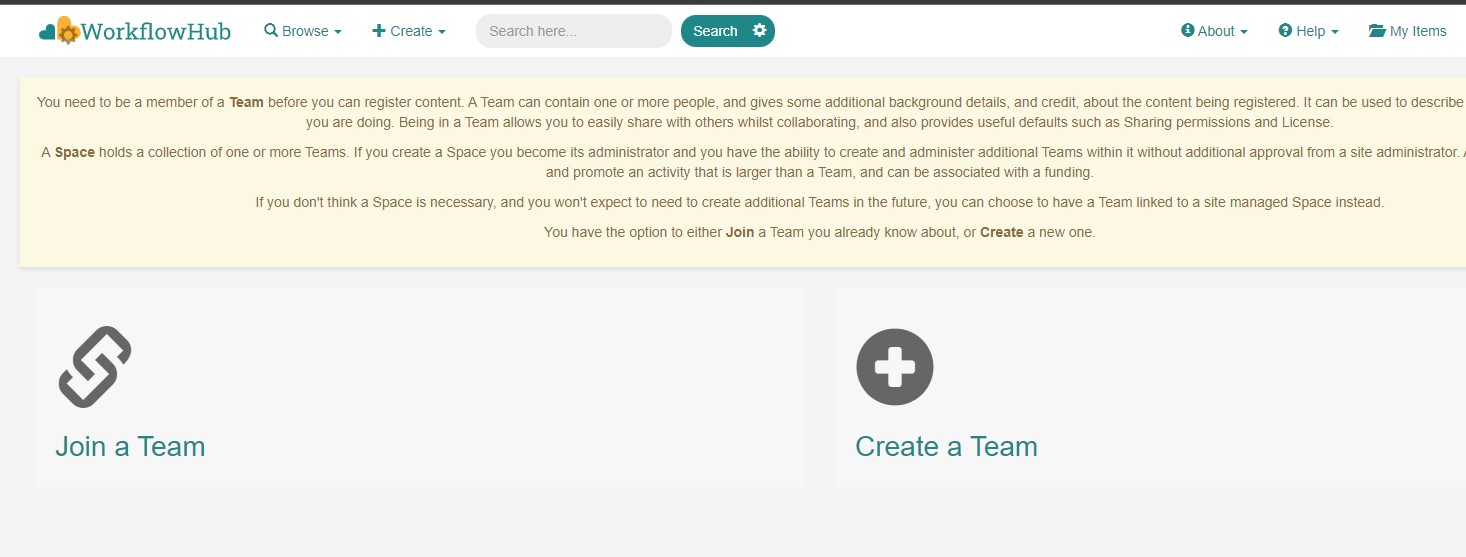
Figure 50 Join or Create a Team at WorkflowHub
Once you belong to a Team, you will be able to use the big
Contributebutton at the WorkflowHub home page.Alternatively, the menu
Createat the top of the web page can be used, selectingWorkflow.
Select the third tab
Upload/Import Workflow RO-Cratetab,Local file, and browse your computer to select the zip file prepared previously. ClickRegister.Review that the information automatically obtained from the workflow provenance is correct.
Select the
Teamsthat this workflow will belong to (mandatory).Select the visibility and teams’ permissions for your workflow in the
Sharingsection (for both general public, and for the WorkflowHub Teams where this workflow will be added).Click
Registeragain.
Warning
WorkflowHub Teams may have default sharing policies defined when they are created. Thus, when linking your workflow to a team, you can select if you want to apply the Team’s default policy or not.
Tip
The crate (i.e. folder COMPSs_RO-Crate_[uuid]/) can also be uploaded to GitHub, and then imported from
WorkflowHub using the second tab option Import Git Repository.
After these steps, the main summary page of your workflow will be shown, where three main tabs can be selected (see https://doi.org/10.48546/workflowhub.workflow.484.1 to check out an example directly at WorkflowHub):
Overview: where the workflow type, workflow description, and workflow diagram are shown.
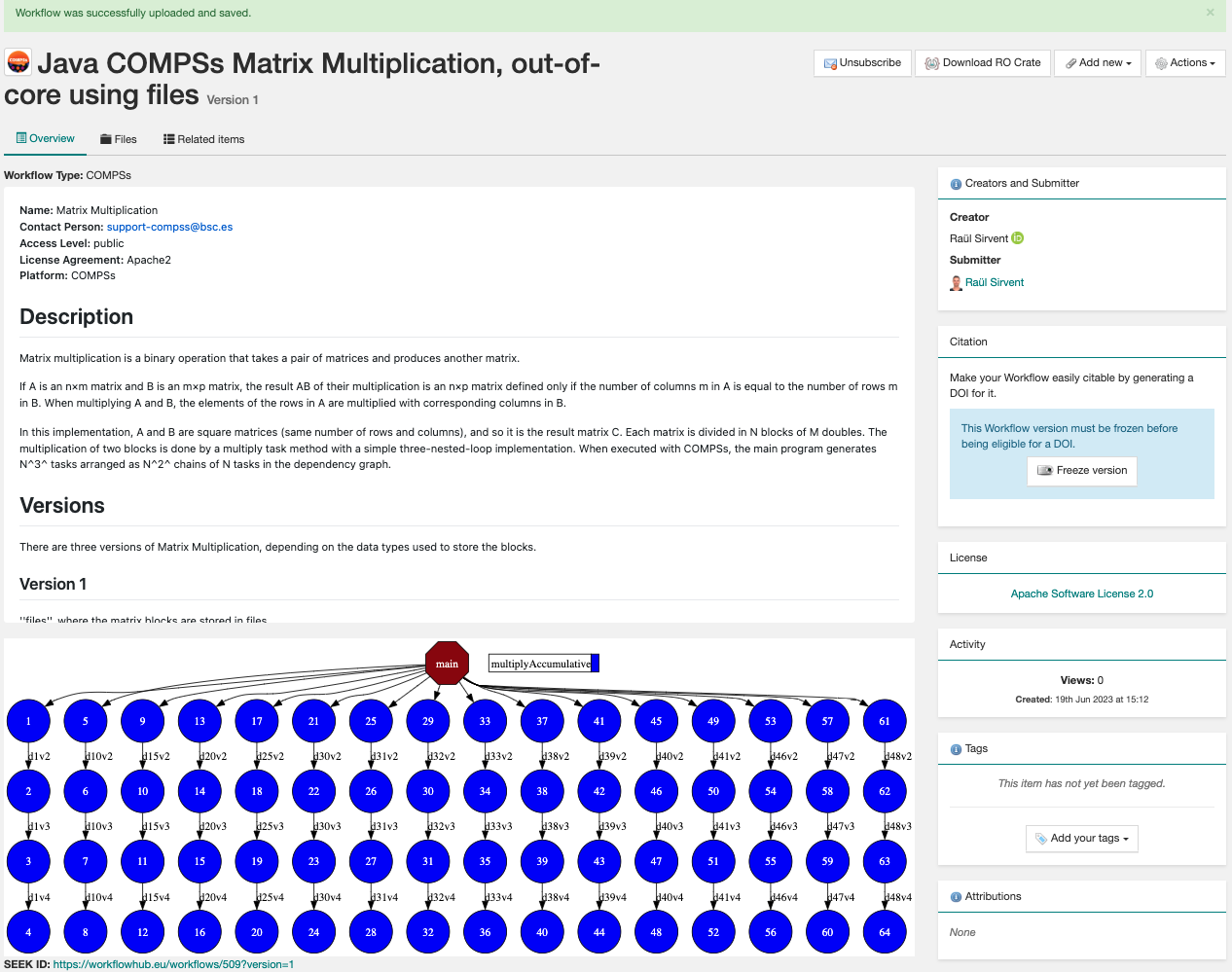
Figure 51 Overview tab information
Files: where you can browse the uploaded content of the crate (see Resulting crate for details on the crate structure).
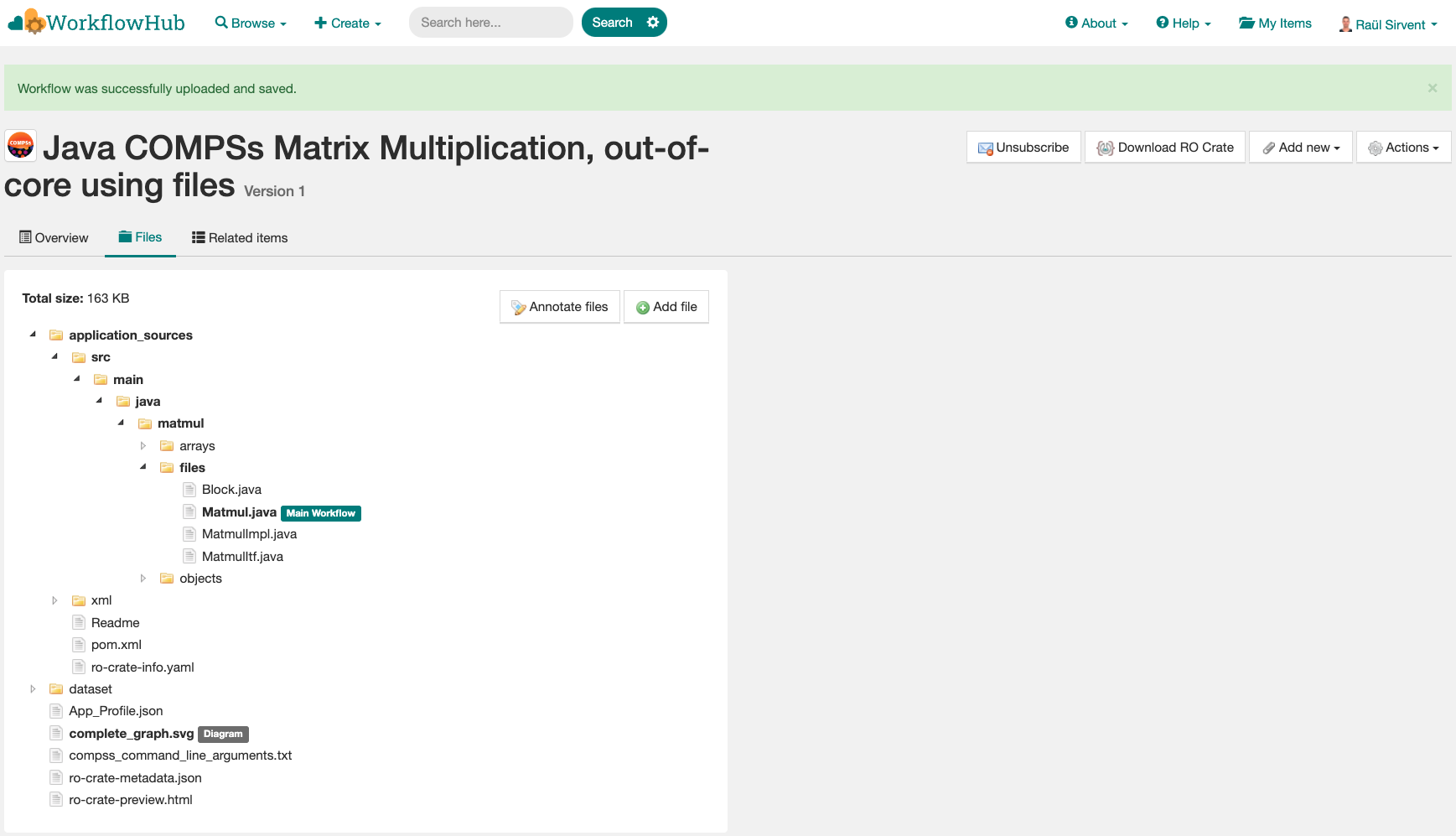
Figure 52 Files tab information
Related items: where you can find any other entities related to this workflow (i.e.
People,Spaces,Teams,Publications,Presentations,Collections, …)
At this point, before freezing and generating a DOI for the workflow, you may consider if remote datasets need to be added to the workflow. See Section Adding large files as remote datasets in WorkflowHub for a detailed guide on how to do that.
If everything is correct, the next step is to generate a DOI (i.e. a persistent identifier) for your workflow. The necessary steps to achieve this are:
Warning
Before generating a DOI for your workflow results, make sure everything uploaded is correct and in its final version, since a DOI is ment to be a permanent reference, and, once generated, erasing a DOI is not easy.
Freeze your workflow version, either from the
Overviewtab,Citationbox,Freeze versionbutton, or from theActionsmenu,Freeze version.
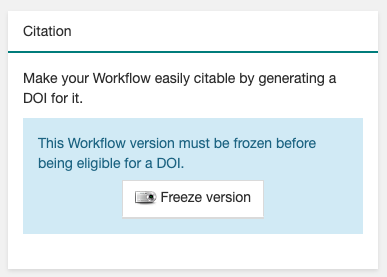
Figure 53 Freeze button in the Citation box
Once frozen, a new
Generate a DOIbutton will appear in theCitationbox. This can be also found in theActionsmenu,Generate a DOI. Finish the generation by clickingMint DOI.
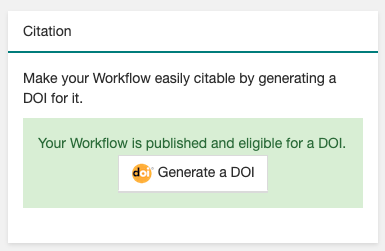
Figure 54 Generate a DOI button in the Citation box
The final generated DOI for the workflow results can be found in the
Citationbox. The format of the citation can be changed from the dropdown menu inside the box, which has a large number of styles available. One of the most commonly used is theBibTeX generic citation style.
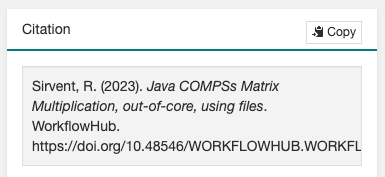
Figure 55 Resulting text in the Citation box, to be used in bibliography
Warning
If no Authors are provided in the YAML configuration file, it won’t be possible to generate a DOI. See Section YAML configuration file
You can see some examples on previous published workflows:
Java COMPSs Matrix Multiplication (using COMPSs 3.2): https://doi.org/10.48546/workflowhub.workflow.484.1
PyCOMPSs WordCount Example (using COMPSs 3.3): https://doi.org/10.48546/workflowhub.workflow.635.1
PyCOMPSs Matrix Multiplication, out-of-core using files. Example using DIRECTORY parameters executed at laptop, data persistence True (using COMPSs 3.3.1): https://doi.org/10.48546/workflowhub.workflow.1046.1
Tip
When writing the description term of your YAML configuration file (see Section YAML configuration file)
you can use Markdown language to get a fancier description in WorkflowHub. You can find a Markdown language guide
in this site, and an example on how to write it at the YAML configuration files
of the previously provided examples (i.e. in their included ro-crate-info.yaml files).
Adding large files as remote datasets in WorkflowHub
As mentioned earlier, whenever a workflow uses or produces a very large dataset, it should not include the data as persistent (i.e. directly included in the crate), but reference it as a remote dataset. A rule of thumb is that, if the workflow includes less than ~100 MB of files, it can be included as a persistent dataset. However, for cases where data assets are hundreds of MBs or even several GBs, the remote dataset option must be used. Some external repositories commonly used to share large datasets are:
Warning
The addition of remote datasets must be done before freezing the workflow version and generating the DOI for citation.
Step 1: execute your application adding manually as
inputsoroutputsthe remote dataset reference (i.e. an https URL reference such ashttps://zenodo.org/records/10782431/files/lysozyme_datasets.zip).See Section YAML configuration file.
- Step 2: upload the workflow run in WorkflowHub.
As described in Section Publish and cite your results with WorkflowHub.
- Step 3: add the remote file as a reference in the workflow files:
Filestab ->Add File->Remote URL.Paste the remote URL (e.g.
https://zenodo.org/records/10782431/files/lysozyme_datasets.zip).Specify the file path in the crate (e.g.
dataset/lysozyme_datasets.zip).
Examples on workflows with remote datasets can be found at:
PyCOMPSs Probabilistic Tsunami Forecast (PTF) - Boumerdes-2003 earthquake and tsunami test-case: https://doi.org/10.48546/workflowhub.workflow.779.1
PyCOMPSs Probabilistic Tsunami Forecast (PTF) - Kos-Bodrum 2017 earthquake and tsunami test-case: https://doi.org/10.48546/workflowhub.workflow.781.1
Re-execute a COMPSs workflow published in WorkflowHub
Apart from sharing workflow runs as shown in earlier sections, the workflow execution published in WorkflowHub can be also used by other individuals in order to reproduce the results (i.e. submit the same workflow with the same inputs, and obtain the same results), therefore, other peers can verify the results of your experiments. To illustrate this process, we will use different examples:
PyCOMPSs: Matrix multiplication with data persistence: https://doi.org/10.48546/workflowhub.workflow.838.1
PyCOMPSs: Matrix multiplication without data persistence: https://doi.org/10.48546/workflowhub.workflow.839.1
Java COMPSs: wordcount: https://doi.org/10.48546/workflowhub.workflow.684.1
When data_persistence is enabled, input and output datasets required or generated by the workflow are included in the crate.
This makes reproducibility easier, but it is only convenient when datasets are of a reasonable size (e.g. tenths of MBs).
Click the DOI link of the workflow you want to re-execute (e.g. https://doi.org/10.48546/workflowhub.workflow.838.1).
Click on
Download RO-Crate. The crate of the corresponding workflow will be downloaded to your machine (e.g. in ~/Downloads/).Move and unzip the file in a new folder.
$ mkdir ~/reproduced_workflow/
$ mv ~/Downloads/workflow-838-1.crate.zip ~/reproduced_workflow/
$ cd ~/reproduced_workflow/
$ unzip workflow-838-1.crate.zip
Create a new_outputs/ folder to avoid overwriting the included dataset/outputs/.
$ mkdir new_outputs/
Inspect the submission command, and re-execute the application adapting the flags and parameters.
$ cat compss_submission_command_line.txt
  runcompss --provenance=matmul_reproducibility.yaml --python_interpreter=/Users/rsirvent/.pyenv/shims/python3 --cpu_affinity=disabled src/matmul_files.py inputs/ outputs/
$ runcompss application_sources/src/matmul_files.py dataset/inputs/ new_outputs/
Once the execution is finished, compare the new outputs generated with the outputs included in the crate.
$ diff new_outputs/ dataset/outputs/
When data_persistence is disabled, the common use case is to re-execute the application in the exact same machine where
the original run was made (e.g. a supercomputer or a cluster). This may be required for reproducing applications that need
specific hardware to run, or to avoid moving large datasets to a different machine by using the machine where data
is located.
Click the DOI link of the workflow you want to re-execute (e.g. https://doi.org/10.48546/workflowhub.workflow.839.1).
Click on
Download RO-Crate. The crate of the corresponding workflow will be downloaded to your machine (e.g. in ~/Downloads/).Move and unzip the file in a new folder in the target machine.
$ scp ~/Downloads/workflow-839-1.crate.zip bsc019057@glogin2.bsc.es:~
  workflow-839-1.crate.zip                            100%   19KB 333.4KB/s   00:00
$ ssh bsc019057@glogin2.bsc.es

$ mkdir ~/reproduced_workflow_no_persistence/
$ mv ~/workflow-839-1.crate.zip ~/reproduced_workflow_no_persistence/
$ cd ~/reproduced_workflow_no_persistence/
$ unzip workflow-839-1.crate.zip
Create a new_outputs/ folder for your re-execution results.
$ mkdir new_outputs/
Inspect the submission command to understand the flags passed to submit the application.
$ cat compss_submission_command_line.txt
  enqueue_compss --provenance=matmul_reproducibility_no_persistence.yaml --project_name=bsc19 --qos=gp_debug --num_nodes=1 --job_name=matmul-DP --lang=python --log_level=debug --summary --exec_time=5 /home/bsc/bsc019057/WorkflowHub/reproducible_matmul/src/matmul_files.py inputs/ outputs/
Inspect the
ro-crate-metadata.jsonmetadata file.Search for the
CreateActionsection,objectterm to see location of input files.Search for the
CreateActionsection,resultterm to see location of output files.You need to ensure you have the corresponding permissions to access the specified locations.
Optionally, you can verify the
contentSizeanddateModifiedfor each input file, to ensure the files in the path referenced match the ones used when the application was originally run.
Re-execute the application adapting the flags and parameters to submit the application.
$ enqueue_compss --project_name=bsc19 --qos=gp_debug --num_nodes=1 --job_name=matmul-DP --lang=python --log_level=debug --summary --exec_time=5 $(pwd)/application_sources/src/matmul_files.py /gpfs/home/bsc/bsc019057/WorkflowHub/reproducible_matmul/inputs/ new_outputs/
Once the execution is finished, compare the new outputs generated with the outputs included in the crate.
$ diff new_outputs/ /gpfs/home/bsc/bsc019057/WorkflowHub/reproducible_matmul/outputs/
For large or extremely large datasets (e.g. hundreds of MBs, several GBs), the most convenient way is to upload them
to a public dataset repository (e.g. Zenodo) and reference them as remote datasets related
to the workflow. See Section Adding large files as remote datasets in WorkflowHub
to learn this process more in detail.
As seen in the examples above, the steps to reproduce a COMPSs workflow vary depending if the
crate package downloaded includes the datasets (i.e. it
has a dataset/ sub-folder). This is achieved when data_persistence is set to True in the
YAML configuration file. Thus, the data preparation step will change depending on the availability of the dataset
needed for the workflow execution. In addition, any external third party software used in the application (e.g.
simulators, auxiliary libraries and packages, …), must be made available in the new execution environment. For
simplicity, we will not go into the details on how to deal with this environment preparation and we will assume the
target environment has all software dependencies ready to be used.
While the reproducibility process of a COMPSs workflow is quite manual at the moment, we plan to automate it using workflow provenance with the COMPSs CLI (see Section PyCOMPSs CLI). Anyway, reproducing executions in the same machine as the one in the published run (e.g. using the same supercomputer) should be quite straightforward, since the metadata may include references to the location of the inputs and outputs of the workflow. Therefore, the only requirement to reproduce a run would be to have access granted to the location where the inputs are.
Metadata examples
PyCOMPSs example (laptop execution)
In the RO-Crate specification, the root file containing the metadata referring to the crate created is named
ro-crate-metadata.json. In these lines, we show how to navigate an ro-crate-metadata.json
file resulting from
a PyCOMPSs application execution in a laptop, specifically an out-of-core matrix multiplication example that includes matrices
A and B as inputs in an inputs/ sub-directory, and matrix C as the result of their multiplication
(which in the code is also passed as input, to have a matrix initialized with 0s). We also set the data_persistence
term of the YAML configuration file to True to indicate we want the datasets to be included in the resulting
crate.
For all the specific details on the fields provided in the JSON file, please refer to the
RO-Crate specification Website.
The corresponding ro-crate-metadata.json can be found here:
PyCOMPSs Matrix Multiplication, out-of-core using files. Example using DIRECTORY parameters executed at laptop, data persistence True: https://doi.org/10.48546/workflowhub.workflow.1046.1
Intuitively, if you search through the JSON file you can find several interesting terms:
creatorcontains the list of authors, identified by their ORCID.publisherlists the organisations of the authors.hasPartin./lists all the files and directories this workflow needs and generates, and also the ones included in the crate. They are referenced with relative paths, since they are included in the crate.ComputationalWorkflowis the main file of the application (in the example,application_sources/matmul_directory.py). Includes a reference to the generated workflow diagram in theimagefield.versioncontains the COMPSs specific version and build used to run this application. In the example:3.3. This is a very important field to achieve reproducibility or replicability, since COMPSs features may vary their behaviour in different versions of the programming model runtime.CreateActiondetails the specific execution of the workflow, compliant with the Workflow Run Crate Profile.The defined
Agentis recorded as theagent.The
descriptionterm records details on the host that ran the workflow (architecture, Operating System version).The
environmentterm includes references to the COMPSs and / or SLURM related environment variables used during the run.The
startTimeandendTimeterms include respectively the starting and ending time of the application as UTC time.The
objectterm makes reference to the input files or directories used by the workflow.The
resultterm references the output files or directories generated by the workflow.
We encourage the reader to navigate through this ro-crate-metadata.json file example to get familiar with its
contents. Many of the fields are easily and directly understandable.
Java COMPSs example (MareNostrum supercomputer execution)
In this second ro-crate-metadata.json example, we want to illustrate the workflow provenance result of a Java COMPSs
application execution in the MareNostrum V supercomputer. We show the execution of a matrix LU factorization
for out-of-core sparse matrices implemented with COMPSs and using the Java programming language. In this algorithm,
matrix A is both input and output of the workflow, since the factorization overwrites the original value of A.
In addition, we have used a 4x4 blocks hyper-matrix (i.e. the matrix is divided in 16 blocks, that contain 16
elements each) and, if a block is all 0s, the corresponding file will not be
created in the file system (in the example, this happens for blocks A.0.3, A.1.3, A.3.0 and A.3.1). We
do not define the data_persistence option, which means it will be False, and the datasets will not be included in
the resulting crate (i.e. only references to the location of files will be included in the metadata).
The corresponding ro-crate-metadata.json can be found here:
Java COMPSs LU Factorization for Sparse Matrices, MareNostrum V, 3 nodes, no data persistence: https://doi.org/10.48546/workflowhub.workflow.1047.1
Apart from the terms already mentioned in the previous example (creator, publisher, hasPart,
ComputationalWorkflow, version, CreateAction), if we first observe the YAML configuration file:
COMPSs Workflow Information:
  name: Java COMPSs LU Factorization for Sparse Matrices, MareNostrum V, 3 nodes, no data persistence
  description: |
    ...
  license: Apache-2.0
  sources: [src, jar, xml, Readme, pom.xml]

Authors:
  - name: Raül Sirvent
    e-mail: Raul.Sirvent@bsc.es
    orcid: https://orcid.org/0000-0003-0606-2512
    organisation_name: Barcelona Supercomputing Center
    ror: https://ror.org/05sd8tv96
We can see that we have specified several directories to be added as source files of the application:
the src folder that contains the
.java and .class files, the jar folder with the sparseLU.jar file, and the xml folder with extra
xml configuration files. Besides, we also add the Readme and pom.xml
so they are packed in the resulting crate. This example also shows that the script is able to select the correct
SparseLU.java main file as the ComputationalWorkflow in the RO-Crate, even when in the sources three
files using the same file name exists (i.e. they implement 3 versions of the same algorithm: using files, arrays or
objects). Finally, since no Agent is defined, the first author will be considered as such. The resulting
tree for the source files is:
application_sources/
|-- Readme
|-- jar
|   `-- sparseLU.jar
|-- pom.xml
|-- src
|   `-- main
|       `-- java
|           `-- sparseLU
|               |-- arrays
|               |   |-- SparseLU.class
|               |   |-- SparseLU.java
|               |   |-- SparseLUImpl.class
|               |   |-- SparseLUImpl.java
|               |   |-- SparseLUItf.class
|               |   `-- SparseLUItf.java
|               |-- files
|               |   |-- Block.class
|               |   |-- Block.java
|               |   |-- SparseLU.class
|               |   |-- SparseLU.java
|               |   |-- SparseLUImpl.class
|               |   |-- SparseLUImpl.java
|               |   |-- SparseLUItf.class
|               |   `-- SparseLUItf.java
|               `-- objects
|                   |-- Block.class
|                   |-- Block.java
|                   |-- SparseLU.class
|                   |-- SparseLU.java
|                   |-- SparseLUItf.class
|                   `-- SparseLUItf.java
`-- xml
    |-- project.xml
    `-- resources.xml

9 directories, 25 files
Since in this second example we do not add explicitly the input and output files of the workflow (i.e.
data_persistence is set to False) (in some cases, datasets could be extremely large),
our crate does not have a dataset sub-folder and only includes references to the files,
which are ment as pointers to where they can be found, rather than a publicly accessible URI references. Therefore,
in this Java COMPSs
example, files can be found in the gs05r2b06-ib0 hostname, which is an internal hostname of MN5. This means that, for
reproducibility purposes, a new user would have to request access to the MN5 paths specified by the corresponding
URIs (i.e. /gpfs/home/bsc/bsc019057/...).
The CreateAction term has also a richer set of information available from MareNostrum’s SLURM workload manager. We
can see that both the id and the description terms include the SLURM_JOB_ID, which can be used to see more
details and statistics on the job run from SLURM using the User Portal tool.
In addition, many more relevant environment variables are captured (specifically SLURM and COMPSs related),
which provide details on how the execution has been performed (i.e.
SLURM_JOB_NODELIST, SLURM_JOB_NUM_NODES, SLURM_JOB_CPUS_PER_NODE, COMPSS_MASTER_NODE,
COMPSS_WORKER_NODES, among others).