📔 PyCOMPSs Notebooks
This section contains all PyCOMPSs related tutorial notebooks (sources available in https://github.com/bsc-wdc/notebooks).
It is divided into three main folders:
* Syntax: Contains the main tutorial notebooks. They cover the syntax and main functionalities of PyCOMPSs.
* Hands-On: Contains example applications and hands-on exercises.
* Demos: Contains demonstration notebooks.
Syntax
Here you will find the PyCOMPSs programming model syntax notebooks used in the tutorials.










Hands-on
Here you will find the PyCOMPSs hands on notebooks used in the tutorials.
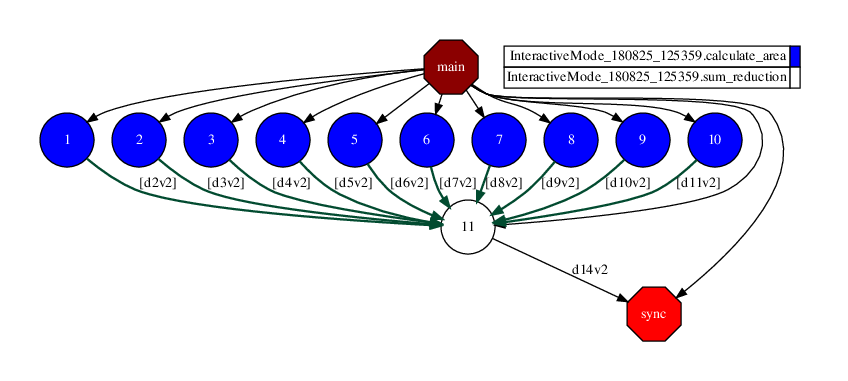
Demos
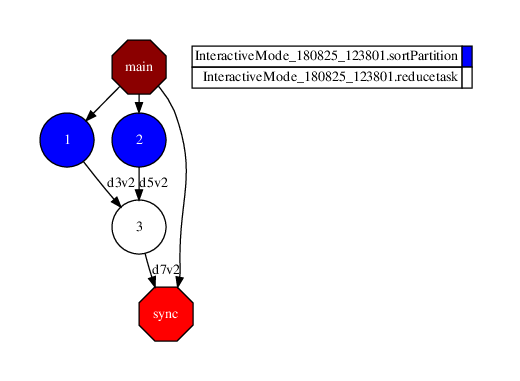
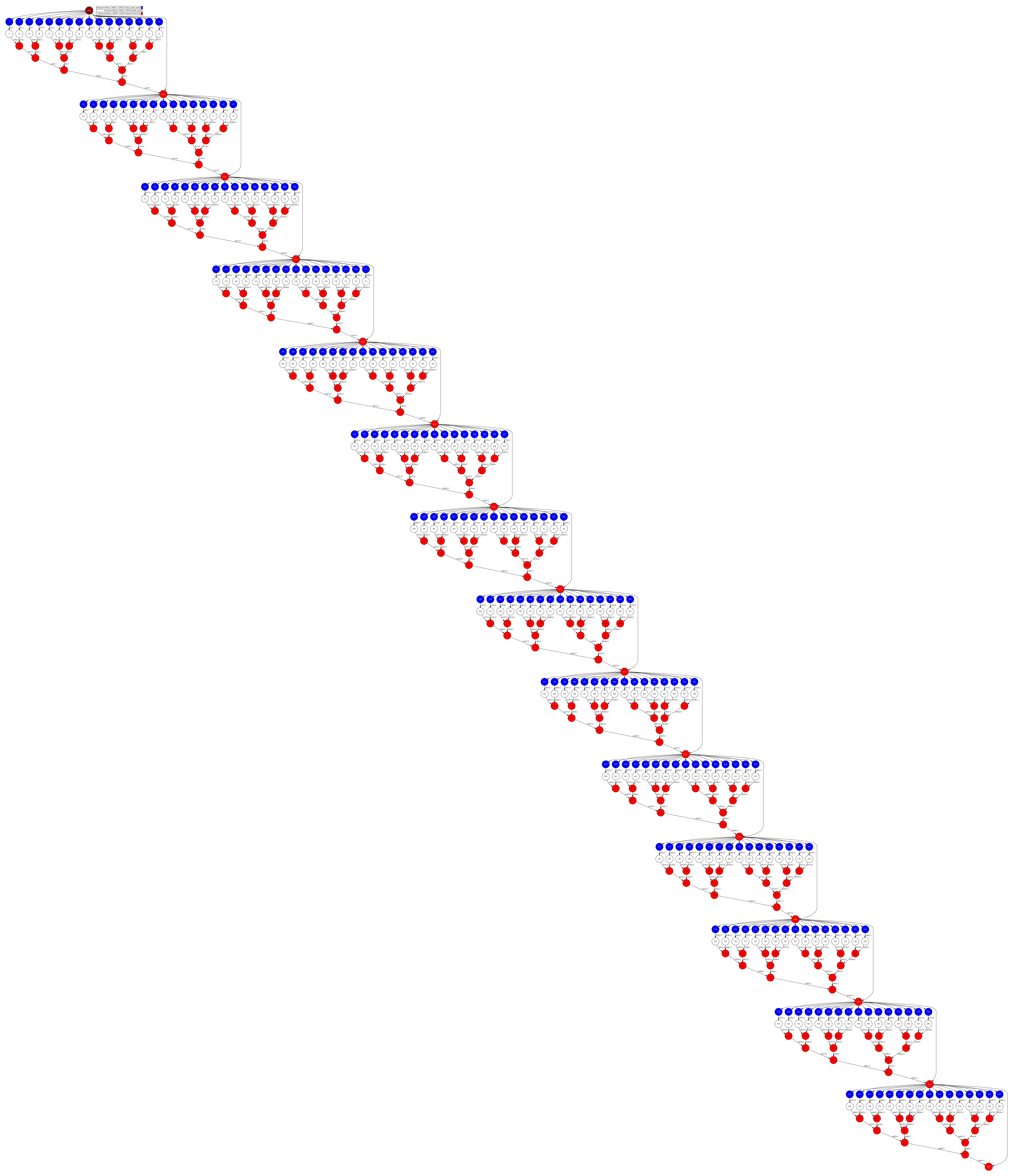
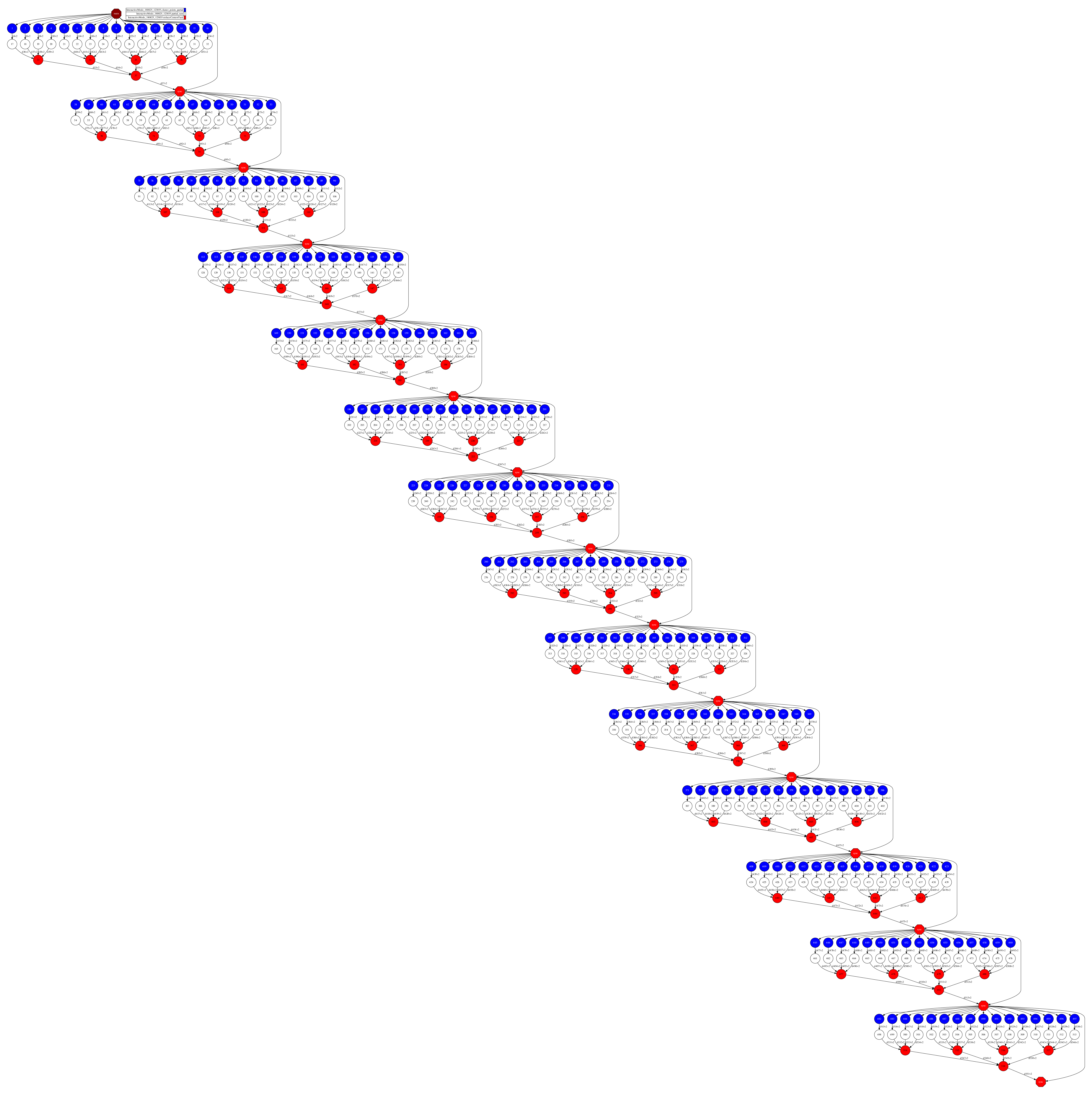
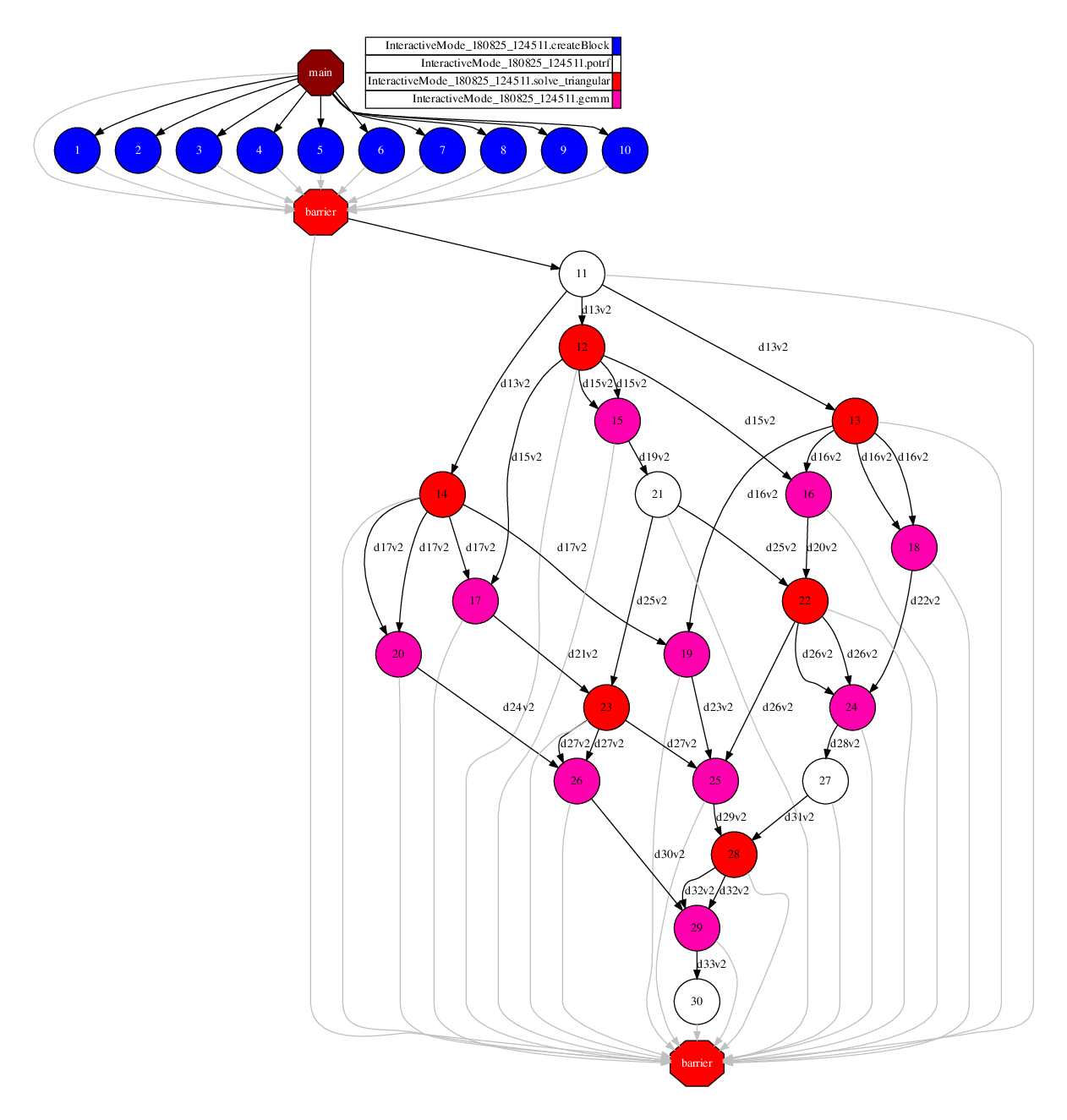
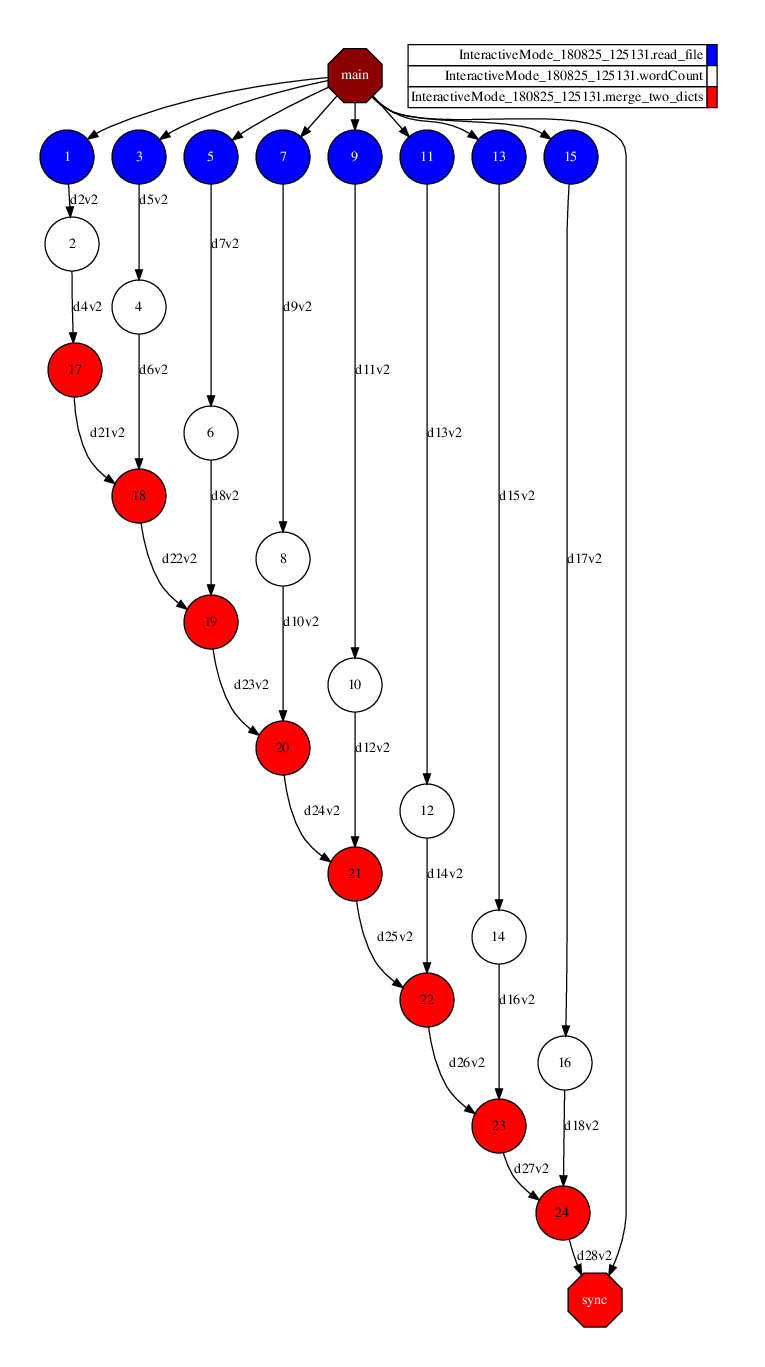
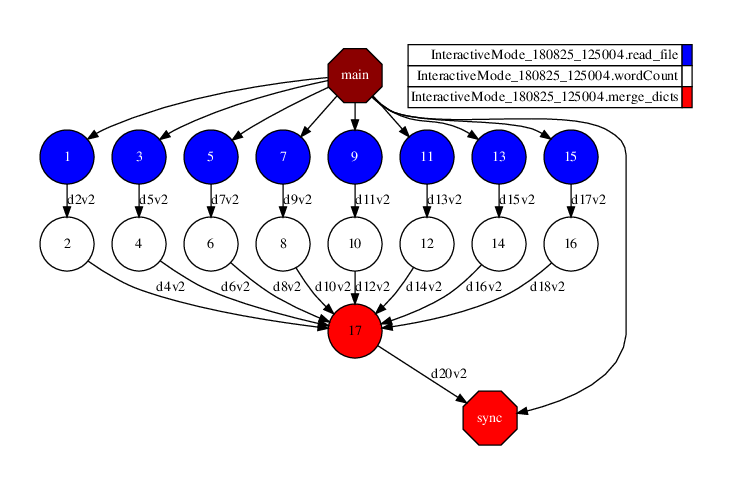
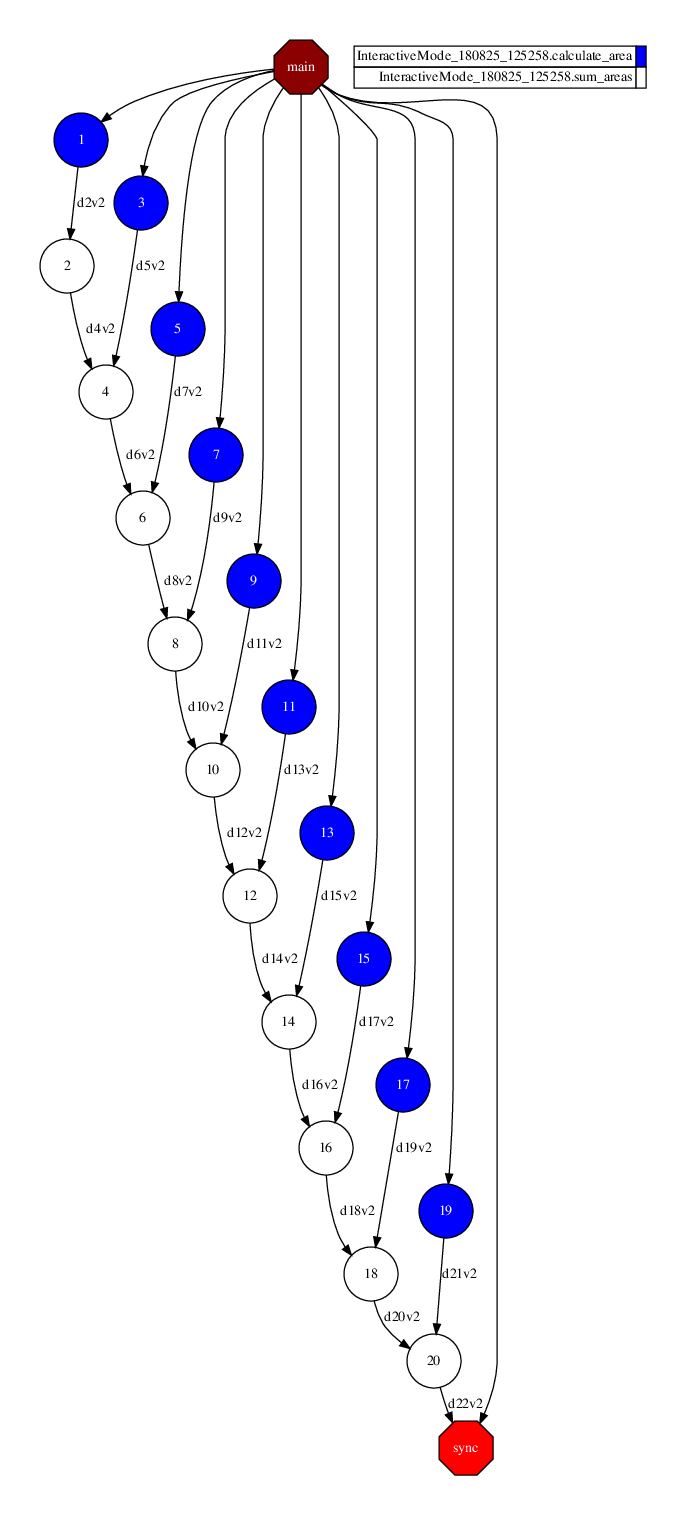
Here you will find the PyCOMPSs demonstration notebooks used in the tutorials.
Hint
These notebooks can be used within MyBinder, with the PyCOMPSs CLI, within Docker, or locally.
Prerequisites
Open

Caution
Sometimes it may take a while to deploy the COMPSs infrastructure.
pycompss-cli(see Requirements and Installation)
Docker
Git
Python 3
Install COMPSs requirements described in Dependencies.
Install COMPSs (See Building from sources)
Jupyter (with the desired ipykernel)
ipywidgets (only for some hands-on notebooks)
numpy (only for some notebooks)
dislib (only for some notebooks)
numba (only for some notebooks)
Git
Instructions
Just explore the folders and run the examples (they have the same structure as this documentation).
Check the pycompss-cli usage instructions (see Usage)
Get the notebooks:
$ git clone https://github.com/bsc-wdc/notebooks.git
$ # Now use the pycompss or compss command.
$ pycompss -h
$ compss -h
Run in your machine:
$ git clone https://github.com/bsc-wdc/notebooks.git
$ cd notebooks
$ pycompss init docker -i compss/compss-tutorial:3.4
$ pycompss env change docker
$ pycompss monitor start
$ pycompss jupyter
From local web browser:
Open COMPSs monitor: http://localhost:8080/compss-monitor/index.zul
Open Jupyter notebook interface: http://localhost:8888/
Get the notebooks and start jupyter
$ git clone https://github.com/bsc-wdc/notebooks.git
$ cd notebooks
$ /etc/init.d/compss-monitor start
$ jupyter-notebook
Then
* Open COMPSs monitor: http://localhost:8080/compss-monitor/index.zul
* Open Jupyter notebook interface: http://localhost:8888/
* Look for the ``application.ipynb`` of interest.
Important
It is necessary to RESTART the python kernel from Jupyter after the execution of any notebook.
Troubleshooting
ISSUE 1: Cannot connect using docker pull.
REASON: The docker service is not running:
$ # Error message:
$ Cannot connect to the Docker daemon at unix:///var/run/docker.sock. Is the docker daemon running?
$ # SOLUTION: Restart the docker service:
$ sudo service docker start
ISSUE 2: The notebooks folder is empty or contains other data using docker.
REASON: The notebooks path in the docker run command is wrong.
$ # Remove the docker instance and reinstantiate with the appropriate notebooks path
$ exit
$ docker stop mycompss
$ docker rm mycompss
$ # Pay attention and UPDATE: /PATH/TO in the next command
$ docker run --name mycompss -p 8888:8888 -p 8080:8080 -v /PATH/TO/notebooks:/home/notebooks -itd compss/compss:3.4
$ # Continue as normal
ISSUE 3: COMPSs does not start in Jupyter.
REASON: The python kernel has not been restarted between COMPSs start, or some processes from previous failed execution may exist.
$ # SOLUTION: Restart the python kernel from Jupyter and check that there are no COMPSs' python/java processes running.
ISSUE 4: Numba is not working with Docker.
REASON: Numba is not installed in the docker container
$ # SOLUTION: Install Numba in the Docker container
$ #           Open a console in the Docker container and follow the next steps.
$ # For Python 2:
$ sudo python2 -m pip install numba
$ # For Python 3:
$ sudo python3 -m pip install numba
ISSUE 5: Matplotlib is not working with Docker.
REASON: Matplotlib is not installed in the docker container
$ # SOLUTION: Install Matplotlib in the Docker container
$ #           Open a console in the Docker container and follow the next steps.
$ # For Python 2:
$ sudo python2 -m pip install matplotlib
$ # For Python 3:
$ sudo python3 -m pip install matplotlib
- Contact