Publish at Zenodo
Similarly as with WorkflowHub, once the provenance metadata for your COMPSs application has been generated, you have the possibility of publishing your results (i.e. both the workflow and the workflow run) in Zenodo, the Open Science portal. Zenodo helps researchers receive credit by making the research results citable and through OpenAIRE integrates them into existing reporting lines to funding agencies like the European Commission. Citation information is also passed to DataCite and onto the scholarly aggregators.
Software requirements
To upload COMPSs RO-Crates to Zenodo, the rocrate-inveniordm package must be used,
thus, it must be installed in advance. Depending on the target system, different
options are available using pip:
If the installation is in a laptop or machine you manage, you can use the command:
$ pip install rocrate-inveniordm
If you do not manage the target machine, you can install the library in your own user space using:
$ pip install rocrate-inveniordm --user
This would typically install the library in ~/.local/. Another option is to specify the target directory with:
$ pip install -t install_path rocrate-inveniordm
Warning
The rocrate-inveniordm package version well-integrated with COMPSs is version 2.1.0 or higher.
Configure rocrate-inveniordm
Follow the steps specified at the rocrate-inveniordm README:
Configure your Zenodo access token at the Zenodo portal (
Profile->Applications->Personal access tokens->New token)Setup environment variables
INVENIORDM_BASE_URL(the Zenodo url),INVENIORDM_API_KEY(the API token created before).
$ export INVENIORDM_BASE_URL="https://zenodo.org/"
$ export INVENIORDM_API_KEY="your_api_key"
Publication steps
The steps to achieve the publication of a COMPSs execution are:
Submit the crate describing your run using the
rocrate_inveniordmCLI (note the underscore):
$ rocrate_inveniordm -z COMPSs_RO-Crate_20250526_113729/
...
Preparing to upload 1 files...
Uploading 1 files...
COMPSs_RO-Crate_20250526_113729.zip
All 1 files uploaded.
Successfully created record 15517563
The -z flag will automatically zip the content of the folder, and upload it to your Dashboard in Zenodo.
Tip
Right now rocrate-inveniordm cannot deal directly with zipped crates, thus consider using -p instead of -z
when generating the workflow provenance of your COMPSs run if you plan to share it with Zenodo.
Warning
It is STRONGLY recommended to always use the rocrate_inveniordm -z flag. Although the content could be uploaded without being zipped,
Zenodo flattens the structure of the directory content in the upload, which may be dangerous for an RO-Crate package.
Go to
My dashboardin Zenodo, review the record that has been just uploaded:
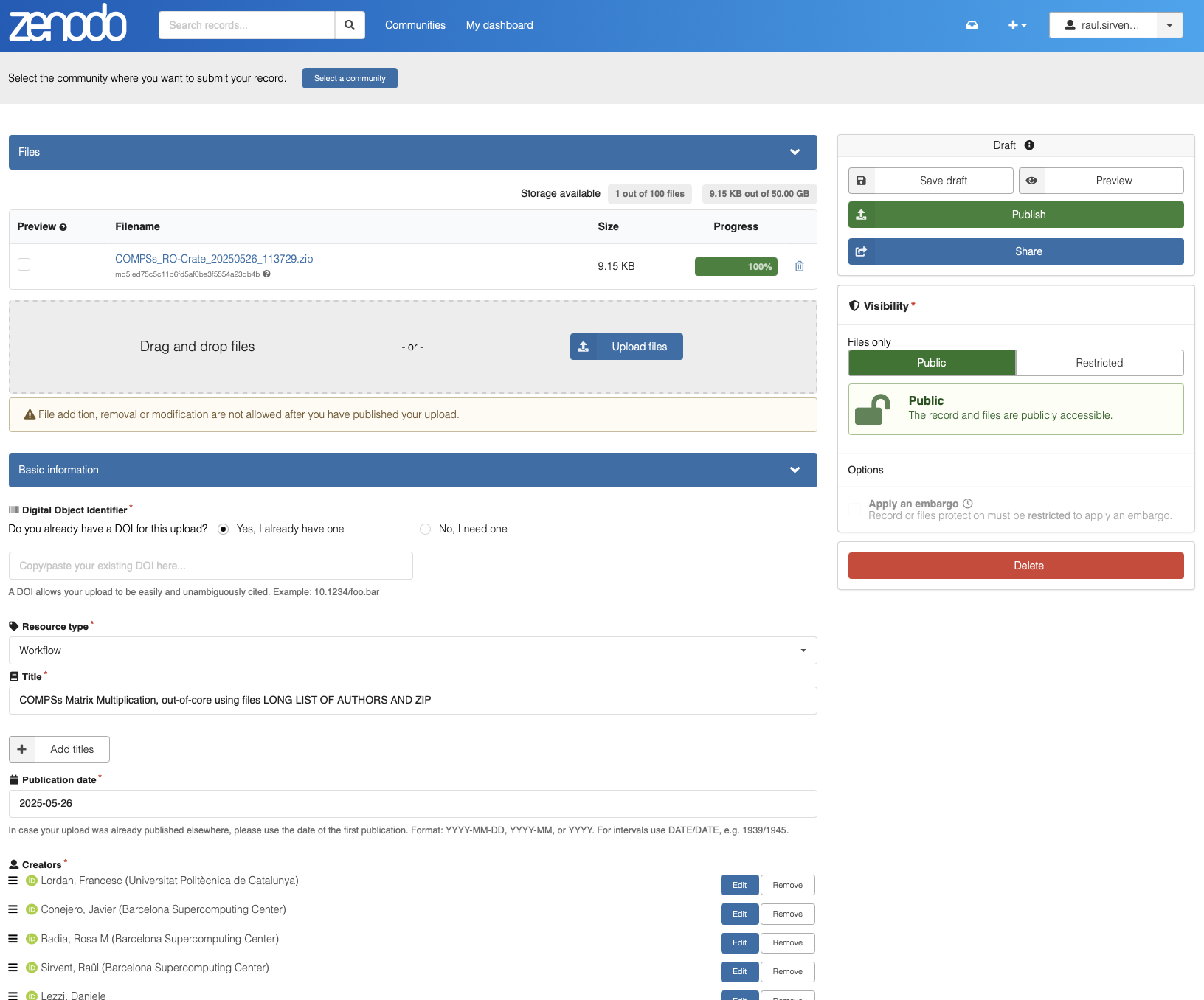
Figure 54 Zenodo record created with the upload
Select if you need a DOI to be generated, to later reference your experiment.
Check that the metadata has been correctly imported:
Resource type: Workflow.
The Title, Publication date, Creators (all names, institutions and ORCIDs), Description, License and Publisher.
Click
Previewto see how the final record will look like.Click
Save draftif you want to continue editing later.Click
Publishto make your record publicly available.
The final record would look something like this example we provide:

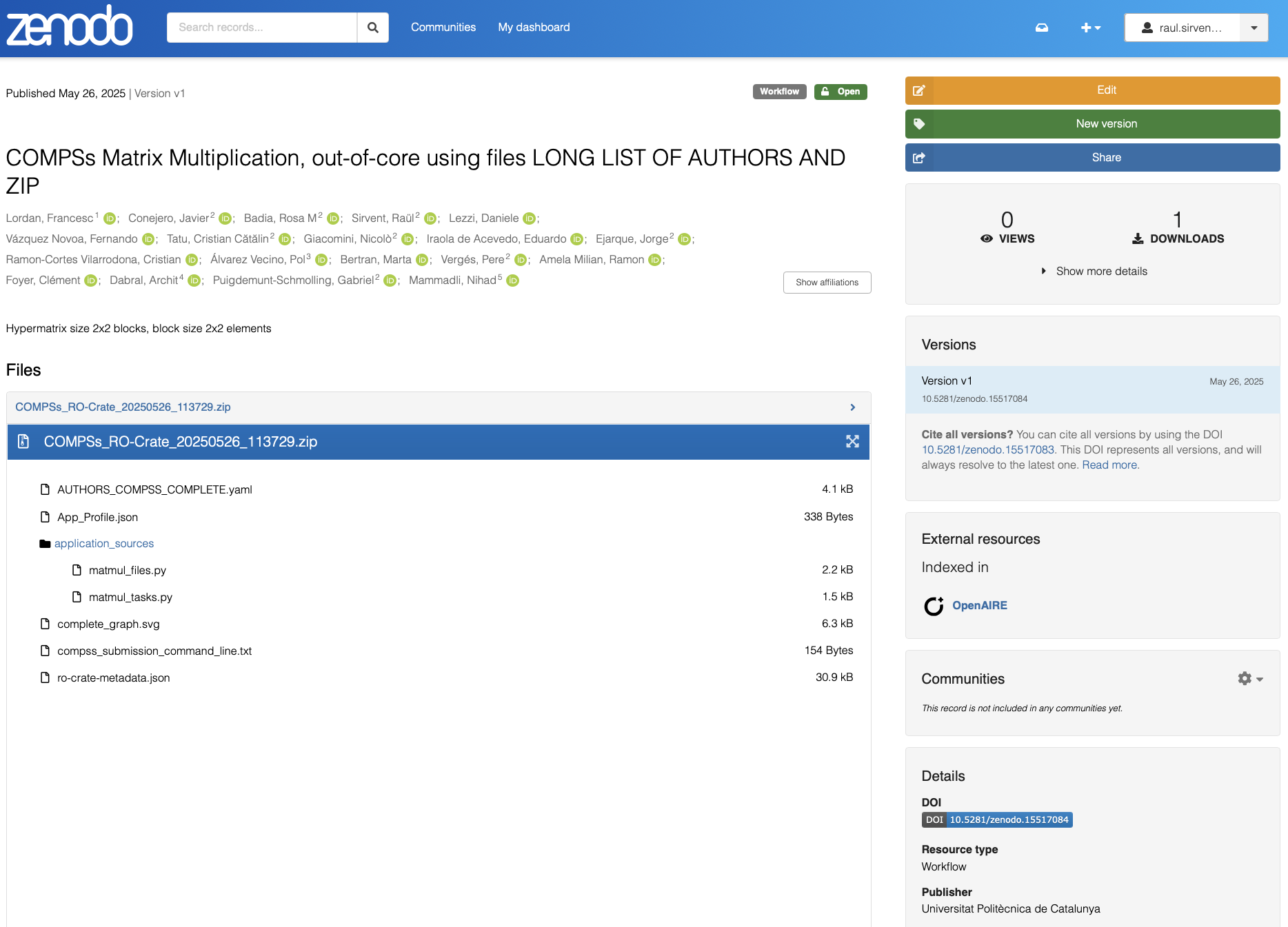
Figure 55 Zenodo published record
Tip
For better compatibility with Zenodo, use the SPDX full URL when specifying the license metadata of your COMPSs experiment. See the full list of licenses at: https://spdx.org/licenses/ Details on how to define the license for your COMPSs run can be found at Section YAML configuration file.